

In this article we’ll take a look at how to route a multi-channel plug-in, such as Sampletank 3 from IK Multimedia, inside Ableton Live so tat you can get the most out of the plug-in while efficiently using your computer’s memory.
Sampletank 3 is a 16-channel multitimbral instrument plug-in that is super powerful. You can use it for sounds ranging from straight-ahead piano all the way to huge multi-layered pads. It comes with 33GB of sounds so you can find just about anything to suit your track, or you can make something up yourself.
To take advantage of the different channels doesn’t mean you have to load in a new plug-in on each track. That would eat up a lot of your computer’s resources. You can load the plug-in on one track and then route the rest of the MIDI channels to separate tracks. It is very easy to do and works basically the same way in a lot of different DAWs. I’ll be talking about how to do this in Ableton Live, but the procedure works in similar ways in other DAWs.
Step One
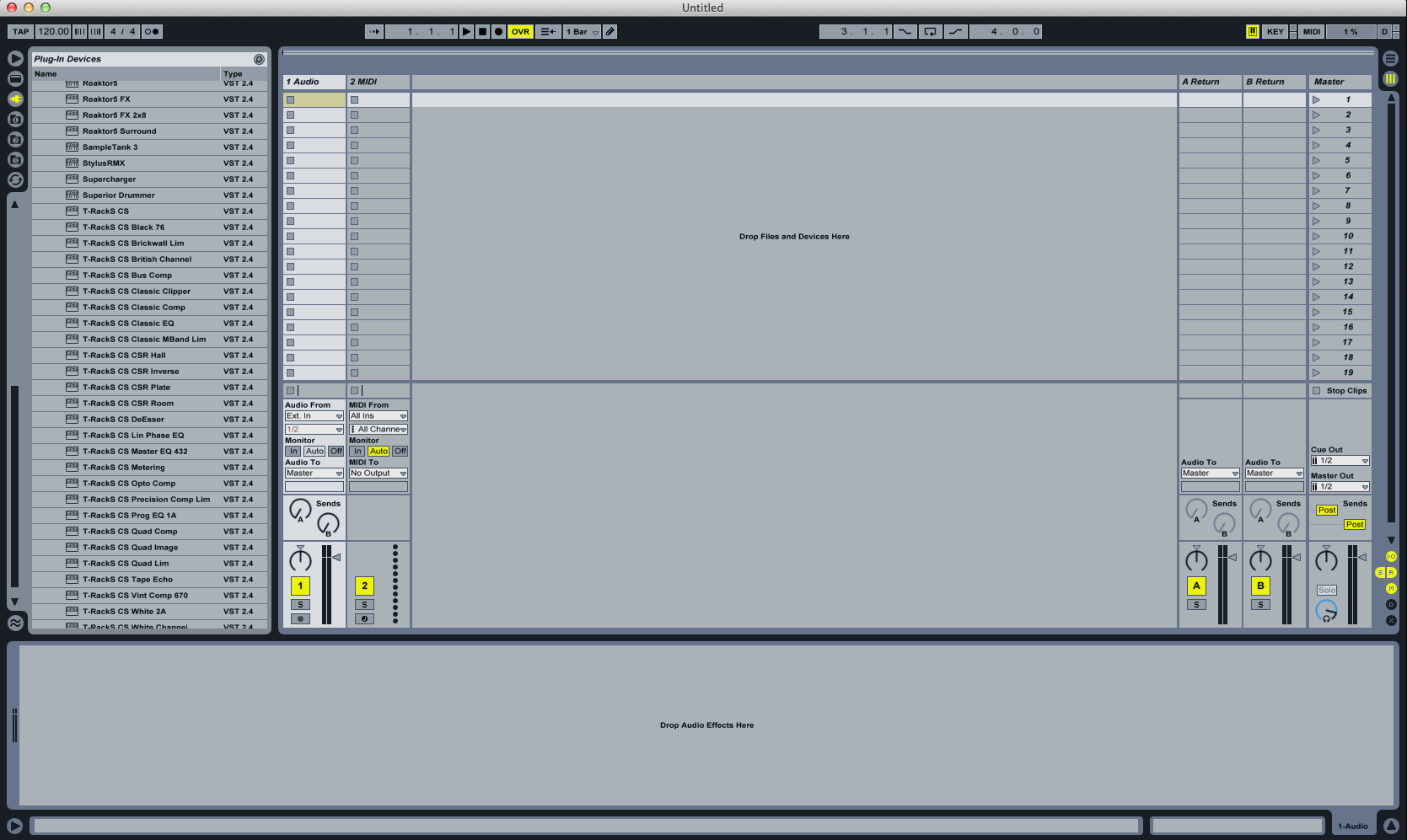
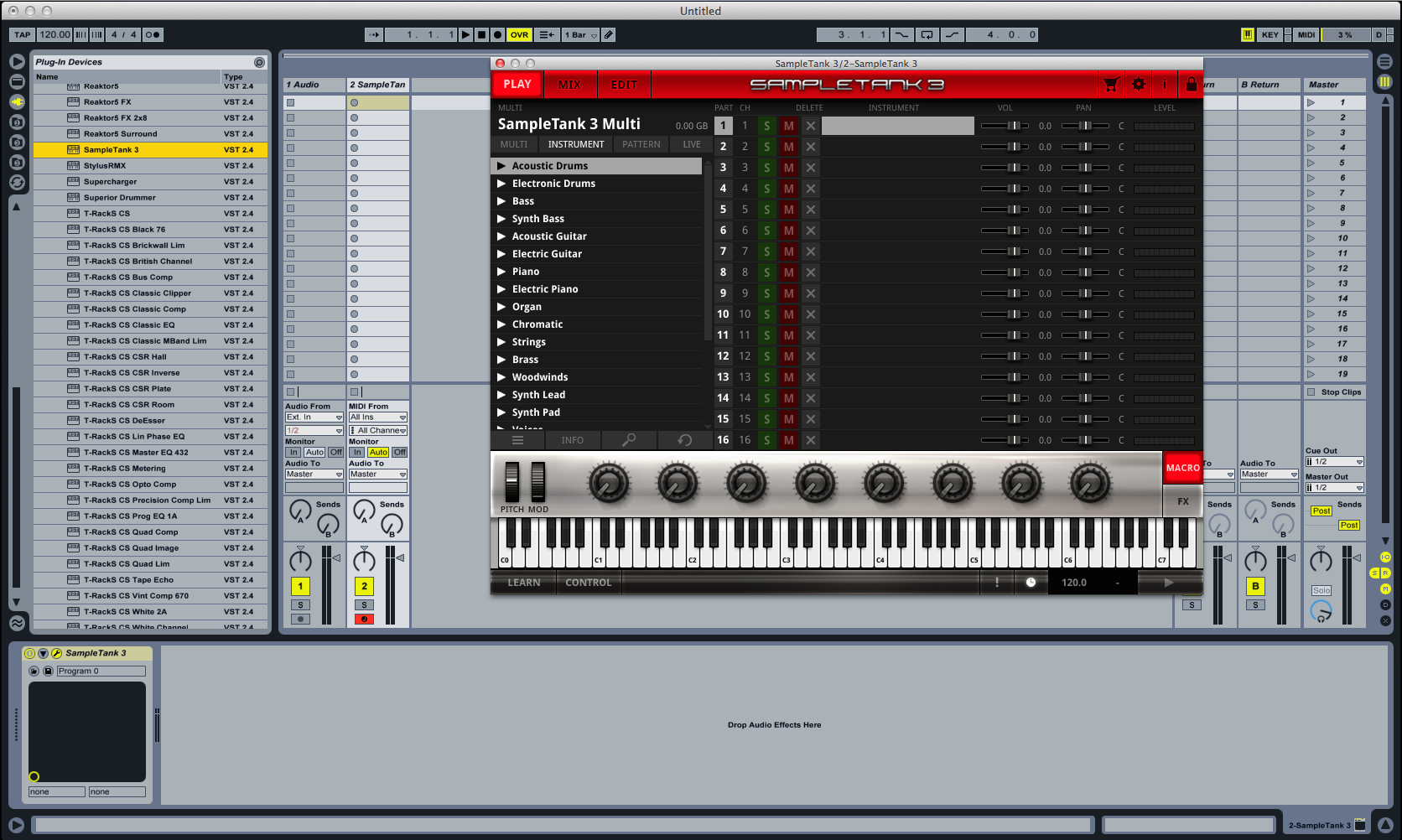
Create a new Live set. (Fig. 1) When you do that in Live its default configuration loads up one audio track and one MIDI track. Open the browser on the left and click on the plug icon. The display will show the instrument plug-ins you have installed in Live. Simply drag one, in this case Sampletank 3, directly onto the MIDI track and it will load up. The name changes to “Sampletank 3” and the plug-in opens. (Fig. 2)
Step Two
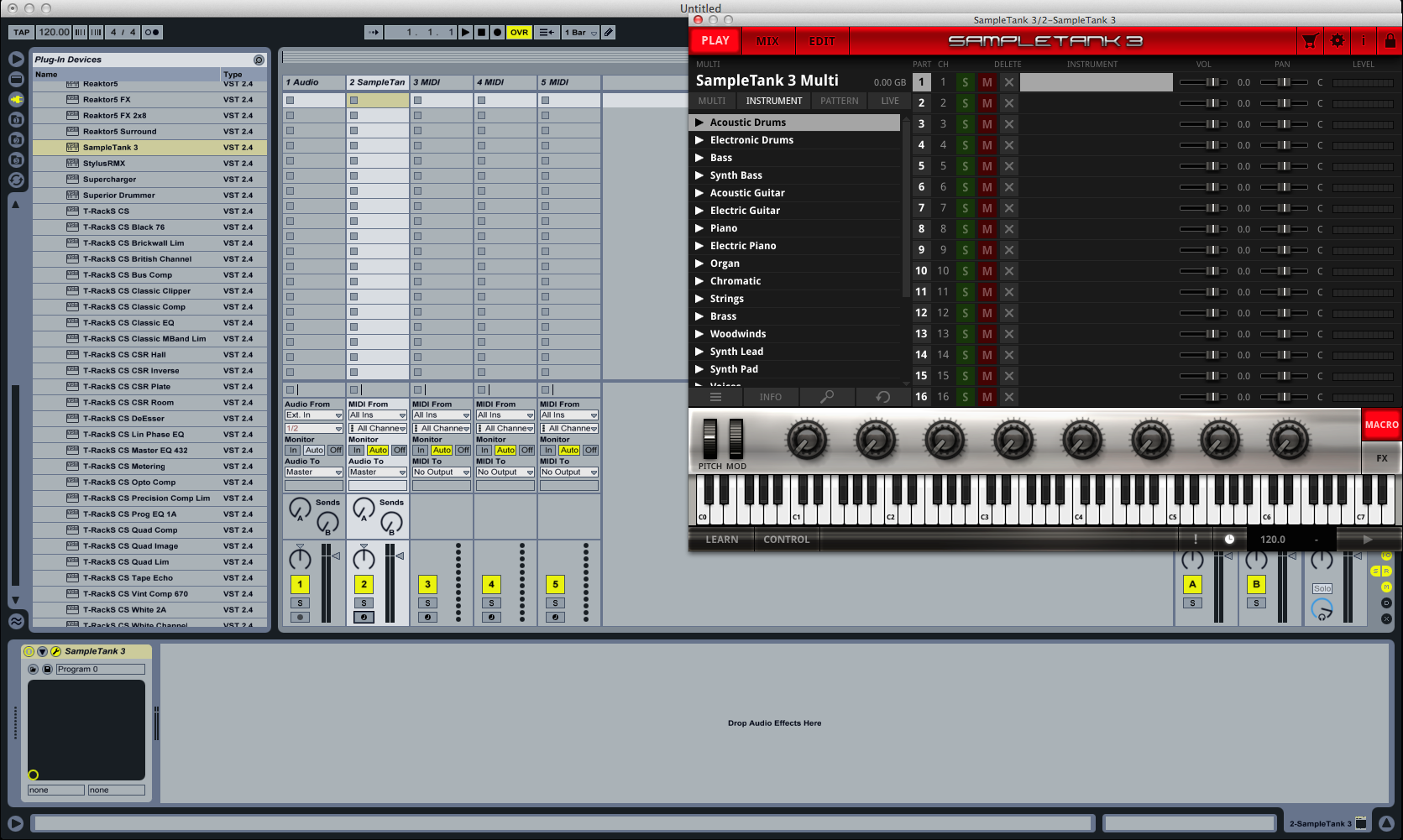
Go to the top left of your screen and click on Create. (Fig. 3) A pull-down menu opens. Scroll down to Insert MIDI Track and click on that. You can insert as many tracks as you like. For this demonstration I inserted three more MIDI tracks.
Step Three
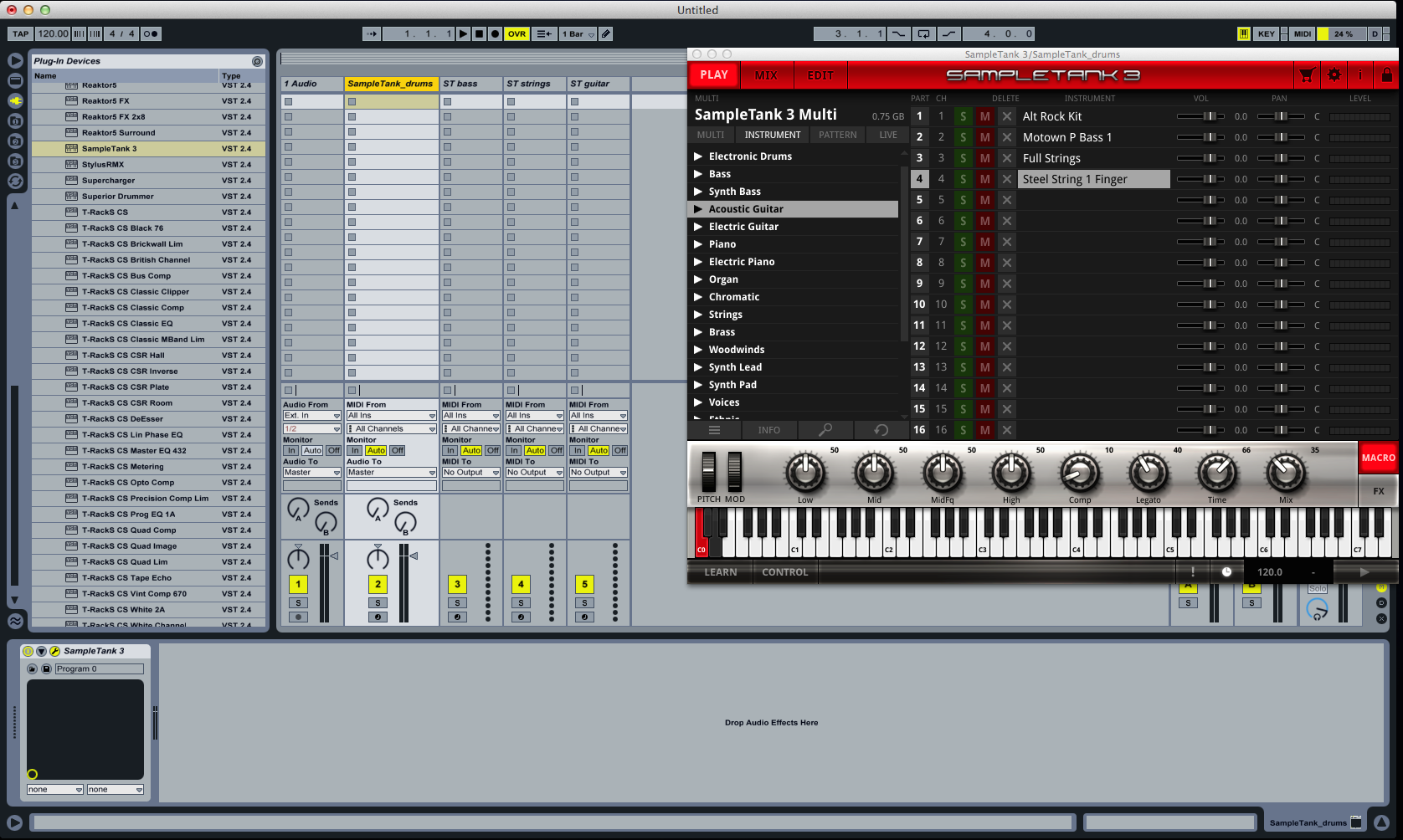
At this point you can add instruments into Sampletank. (Fig. 4) I added four instruments: drums, bass, strings, and guitar. In Sampletank it is super easy to add instruments. You just click on the part you want to add an instrument to, find your sound from the menu on the left, double click, and Sampletank will load it in. It’s a good idea to name the tracks in Live to correspond with the instruments in Sampletank. That way there is no confusion.
Step Four
This is the step where you route your channels. (Fig. 5) Go to the next track and look at the ins and outs. Where it says MIDI From, you don’t have to do anything. For this purpose you want to receive from All Ins.
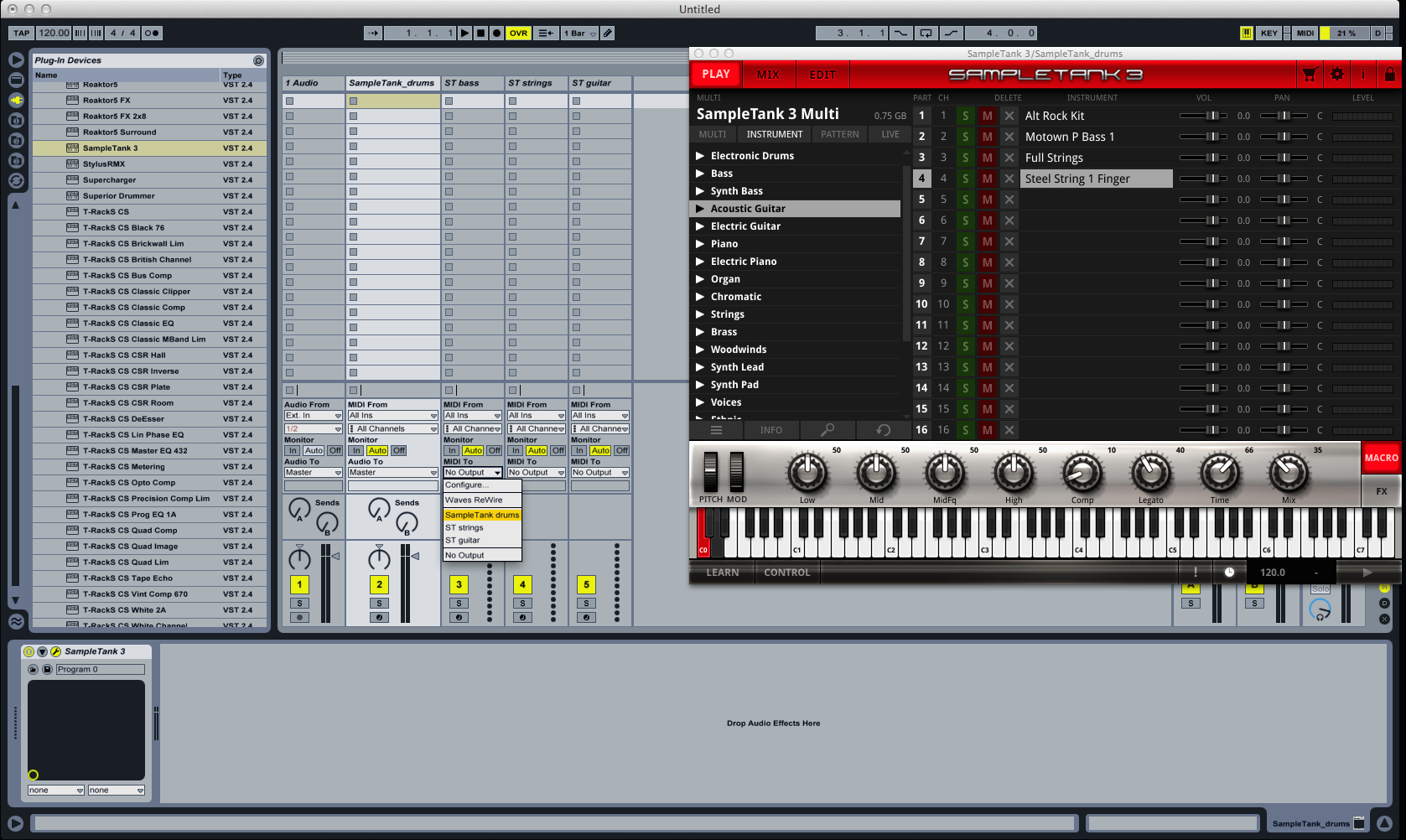
Below that is MIDI To. By default it is set to No Output but if you click on it, a menu opens and you can select Sampletank. Do the same thing for your other tracks.
Step Five
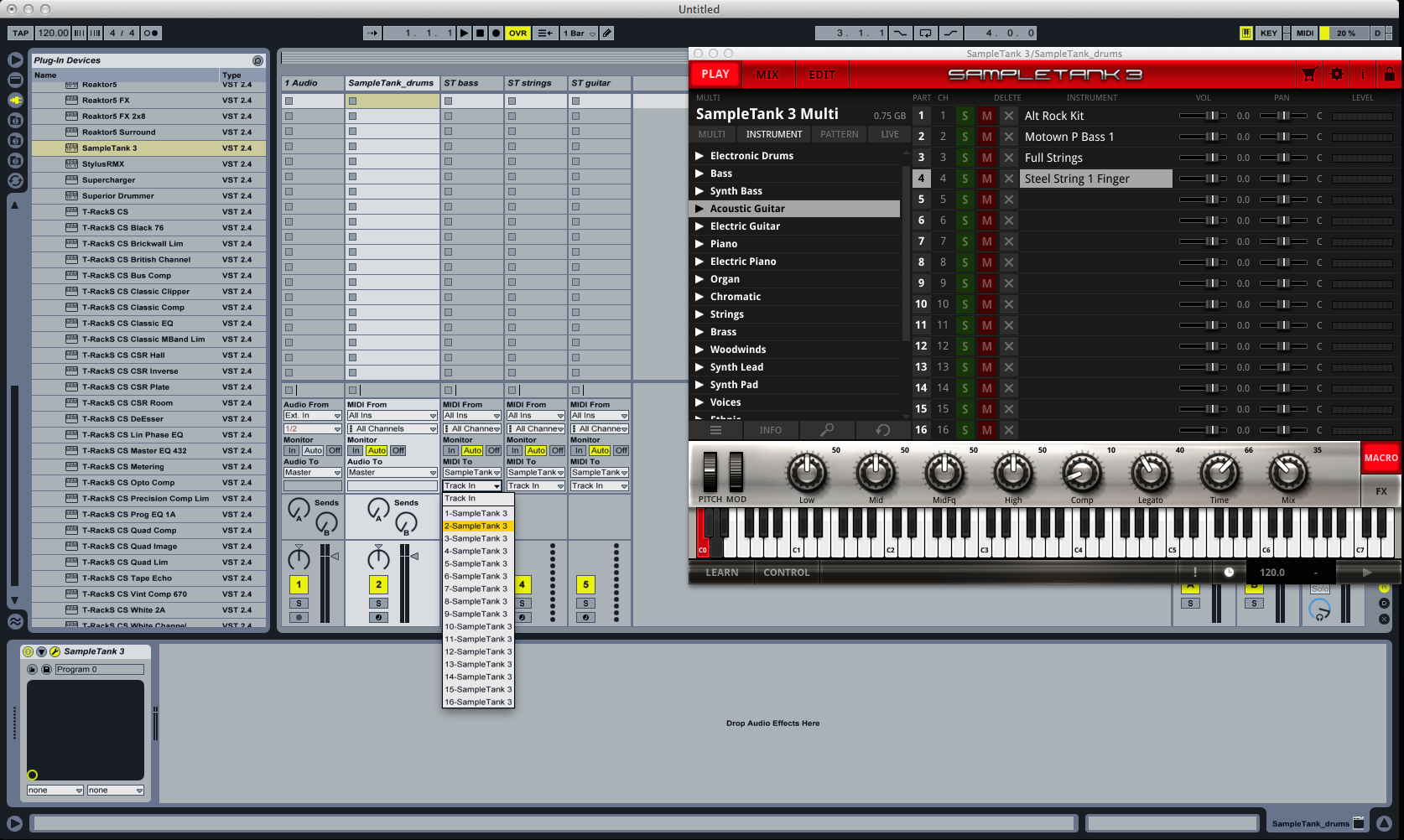
You’ll notice a box directly underneath comes up and says Track In. This is where you route your MIDI inputs in Sampletank. (Fig. 6) Click on Track In and go to the next channel down. For this article I am just going in order but this is the same place you send your input to any channel. Do the same for your other tracks.
Step Six
Now that your instruments are loaded in and your MIDI ins and outs are routed, it is time to make music. Just click on the Record Arm button at the bottom of the track. (Fig. 7) The button will turn red — the track is now ready to record and is in input mode so you can hear the signal coming into that track. If you don’t have the record button turned on you will not hear the incoming signal.
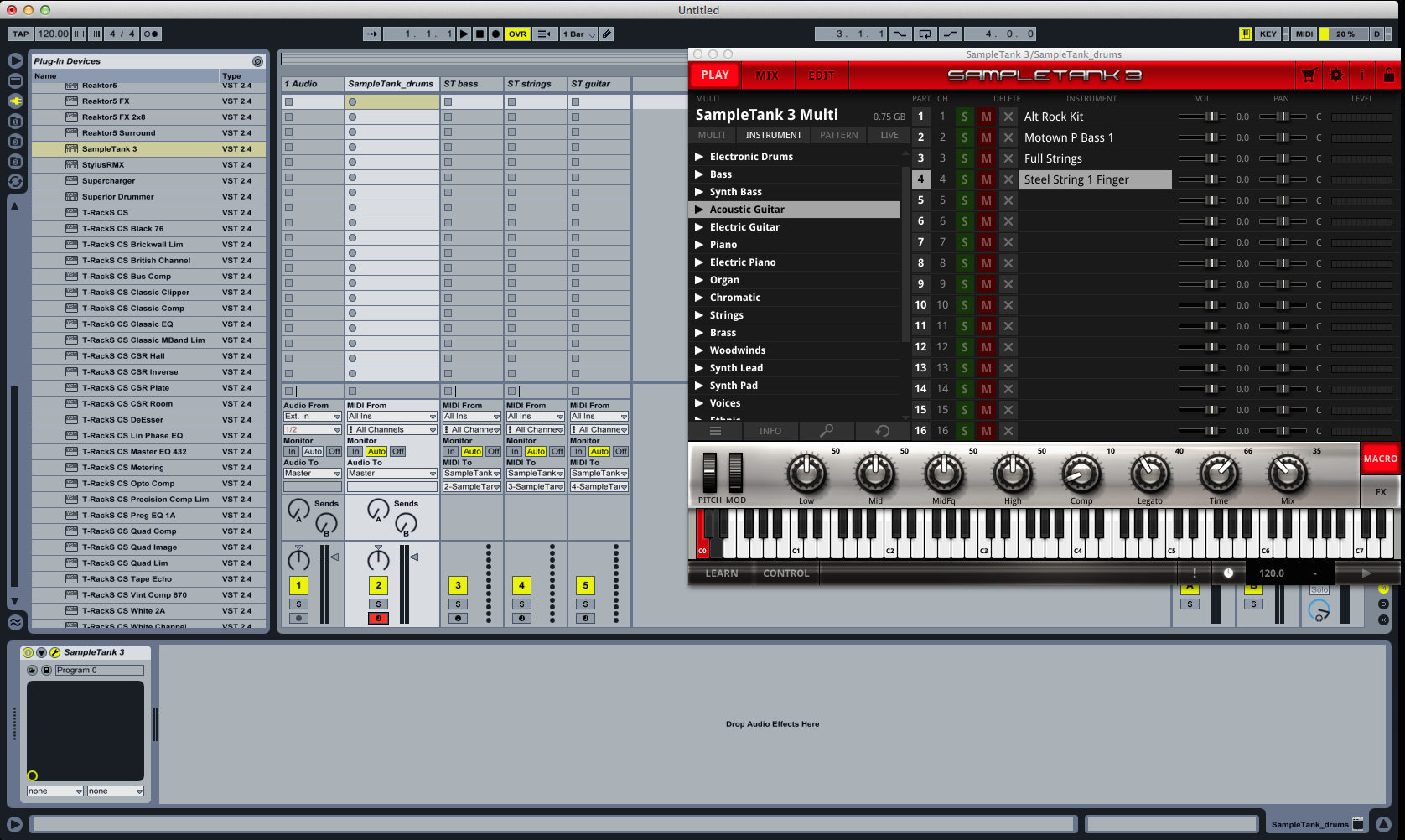
You can also turn on the In button under where it says Monitor but this actually a little more of a hassle if you quickly want to hear a specific instrument. If you use the In button then you have to turn off the main track that the plug-in is loaded onto or you will hear it as well — more buttons to turn on and off when you can just click on the record button and only hear the track you want to hear.
That’s It!
Setting up a plug-in in Live for multitimbral operation takes a few steps, but it is easy to do. This will work for any multi-channel plug-in so have fun, be creative with these fabulous products, and make great music!