
Yamaha PSR-E Quickstart Guide
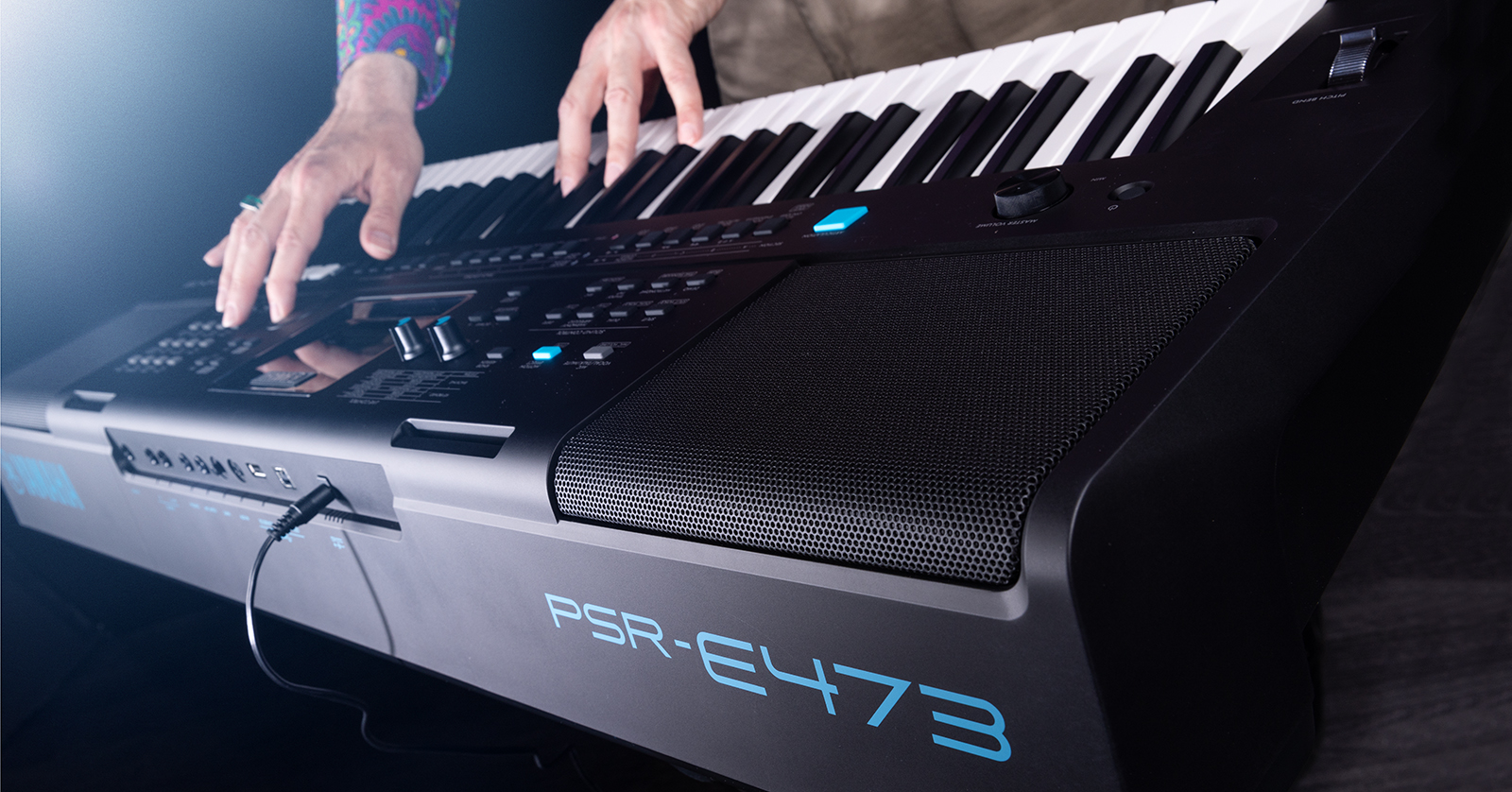
Thanks for buying a Yamaha PSR-E portable keyboard from Sweetwater. Whether this is your family’s first keyboard or you have been playing for some time, we have some tips to help you get up and running.
The different models of PSR-E have various features and functions, so we will concentrate on the basics.
- Register Your Purchase with Yamaha
- Connecting Your Yamaha PSR-E
- What Is MIDI?
- Playing Your PSR-E
- Sit Comfortably When You Play Your Keyboard
- Caring for Your PSR-E keyboard
Register Your Purchase with Yamaha
Go to https://usa.yamaha.com/.
Create an account if you don’t have one.
After you log in, click the Product Registration link, and on the following page, Register My Product. Fill out your information and your keyboard’s serial number, which is on the bottom of the unit.
After registering, your product will appear on your user account under My Products. Click on it to find more information about your PSR-E keyboard.
Download the Owner’s Manual and Other Resources
While your printed Owner’s Manual can be found in the box, it’s helpful to have a digital copy on your computer.
Go to the Yamaha USA Portable Keyboards page. Locate your model and click on it.
On your keyboard model’s home page, look for the Downloads tab. You will see several sections, depending on your model.
- Firmware / Software. Certain models of Yamaha PSR-E can be connected to a Mac or a Windows PC for use with music apps. If your model has this capability and you are on the Microsoft Windows platform, here is where you can find the driver, the software you need so that your PC can communicate with the keyboard. Download the driver’s installer and follow the instructions.
- Manuals. There will be an Owner’s Manual, and there may be others as well; more complex models have a Reference Manual that takes a deep dive into advanced features. The Drum Kit List is a series of charts that show which percussion sounds are triggered by which keys. If your PSR-E has the ability to connect to apps on Android and iOS, you will see the Yamaha Smart Device Connection Manuals.
- Brochures. These are product descriptions with specifications.
- Other Downloads. Here, you will find the educational Songbook, which provides sheet music for playing the melody along with the library of Songs on your keyboard.
Check Out the Apps for Your Mac, Windows PC, iPhone, iPad, or Android
On the Yamaha home page for your model of PSR-E, check out the Apps tab to learn about Yamaha music lesson apps that you can use with iPhone/iPad, Android, and PC/Mac. Yamaha provides different apps for different models.
Connecting Your Yamaha PSR-E
Power Supply and Batteries
Your PSR-E can be battery powered, or you can use the power adapter included and plug it into the wall. Your PSR-E requires six AA batteries.
Make sure your Yamaha PSR-E’s power switch is turned off before you hook up the power or insert batteries.
To save power, your PSR-E has an Auto Power Off feature that turns off the unit when it has not been touched for 30 minutes. You can change the amount of time or disable this feature in the unit’s Function settings.
Learn more in your Owner’s Manual section Setting Up > Power Requirements.
Built-in Speakers, Headphones, and External Audio
Your PSR-E has built-in speakers. They are loud enough so that you can hear the instrument when you play alone.
You can also use headphones. When you plug your headphones or a cable into the Phones jack, the built-in speakers are automatically shut off.
If you play through headphones, keep the volume at a comfortable level. Don’t play through headphones for a long period of time or at a high volume. You can experience ringing in your ears and even damage your hearing if you do.
If you want to play where other people can hear you, or play in a band, the built-in speakers will not be loud enough. In that case, you will want to connect a stereo cable from the Phones jack on your PSR-E to an external amplifier and speakers, to a mixer, or to a PA system. You can also use this jack to connect a cable to an audio interface so you can record the audio output to an app on your computer.
Some models of PSR-E also have a separate pair of jacks labeled Output. These provide another way to output a mono or stereo signal to an amp, speakers, or a mixer.
Cables and Connections
Before you plug in headphones or connect any other cables to your keyboard, make sure the power is turned off and the master volume is turned all the way down.

Here is a description of the connections that may be present on the back of your Yamaha PSR-E and what they are used for. Not all connections are available on all models.
- Power Connection. Use only the Yamaha power supply that comes with your keyboard.
- USB to Host.Connect a USB-B to USB-A cable to your Mac or your Windows PC to send MIDI data to control music apps. This also allows you to use your PSR-E as an audio interface to transmit digital audio to your computer for streaming or to a recording app called a DAW (Digital Audio Workstation). If you are using a Windows PC, you need to go to the Yamaha website and download and install the Windows driver, as discussed above.
- USB to Device.Plug in a USB flash drive for storing programs, playing back audio files through the PSR-E’s speakers, or recording performances as audio.
- Aux In.Connect a 1/8-inch TRS stereo cable to a phone, a tablet, or the device’s headphone output to play back external audio through the PSR-E’s speakers.
- Gain and Mic Input.Some PSR-E models can accept a dynamic microphone connected with a 1/4-inch TS cable. Sound from the microphone is played through the PSR-E’s speakers. You can sing along with your keyboard performance while applying effects to your vocals. Adjust the Gain knob to control the input level of the microphone to get a clean signal.
- Phones.Connect a 1/4-inch TRS cable to your headphones or to an amplifier, a speaker, a mixer, or an audio interface.
- Output, L/L+R and R.Some PSR-E models also have a pair of 1/4-inch TS jacks labeled Output, which you can usein addition to the Phones jack. For monaural output, connect a cable to the L/L+R jack. For stereo, connect a second cable to the R jack.
- Sustain.Connect a sustain pedal (sold separately). A sustain pedal functions like the damper pedal on an acoustic piano. When you play keys on the keyboard and hold the sustain pedal down with your foot, the notes will continue to ring out after your fingers leave the keys. Using the system settings on the PSR-E, you can also assign the sustain pedal to two other functions, Articulation and Arpeggio. Consult your Owner’s Manual.
What Is MIDI?
Models of PSR-E that have a USB port on the back can transmit MIDI data to a computer. MIDI stands for the Musical Instrument Digital Interface. MIDI enables, among other things, playing your keyboard and having the notes trigger sounds created on the computer in apps called virtual instruments. If you are new to MIDI, Yamaha has a helpful, short brochure, Yamaha MIDI Basics.
Playing Your PSR-E
Okay, you’ve been patient with us as we explain all the ins and outs. Now you’re eager to start playing sounds.
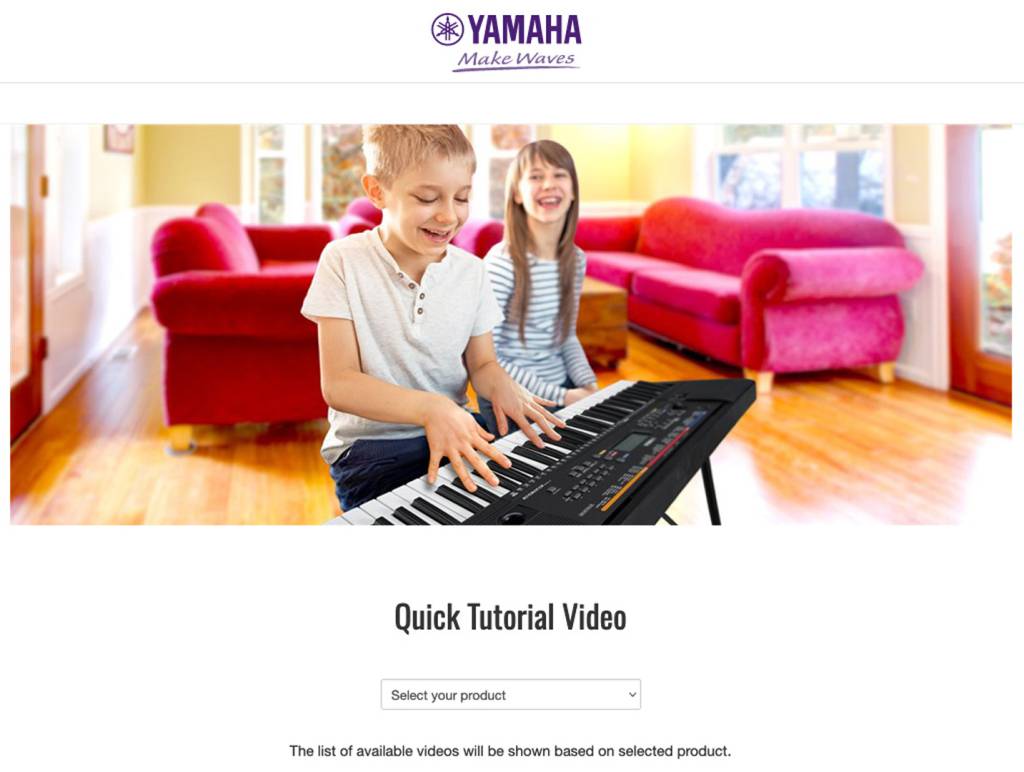
Every model of PSR-E has different features. Fortunately, Yamaha provides a library of video tutorials for each model. Click on the image above to go to the Yamaha Quick Tutorial page. Select your model from the drop-down list and check out the videos. They will explain how to navigate your model’s buttons and knobs and select different sounds. Have fun!
Sit Comfortably When You Play Your Keyboard
Good posture enables you to learn to play without fatigue. You need to position your keyboard so that when you sit and play it, your arms, neck, and body are not strained. It’s easy: all you need are the right chair or bench and an adjustable keyboard stand.
Find the Right Chair or Bench
Get a sturdy chair with no arms or an adjustable keyboard bench of the right height so that your feet sit flat on the floor while you sit up straight.
Then, pay attention to how you hold your torso, head, and arms. Adjust your keyboard stand so that the keys are at the right height. Here’s how.
When you sit up straight on your chair, relax your shoulders and let your arms hang at your sides. Raise your hands to the same height as your elbows. This is the comfortable, stress-free playing position. Now adjust the keyboard stand so that the keys on your instrument are slightly below the ideal position of your hands. Your keyboard teacher can help with your hand and wrist position for proper, stress-free playing.
Use a Keyboard Stand
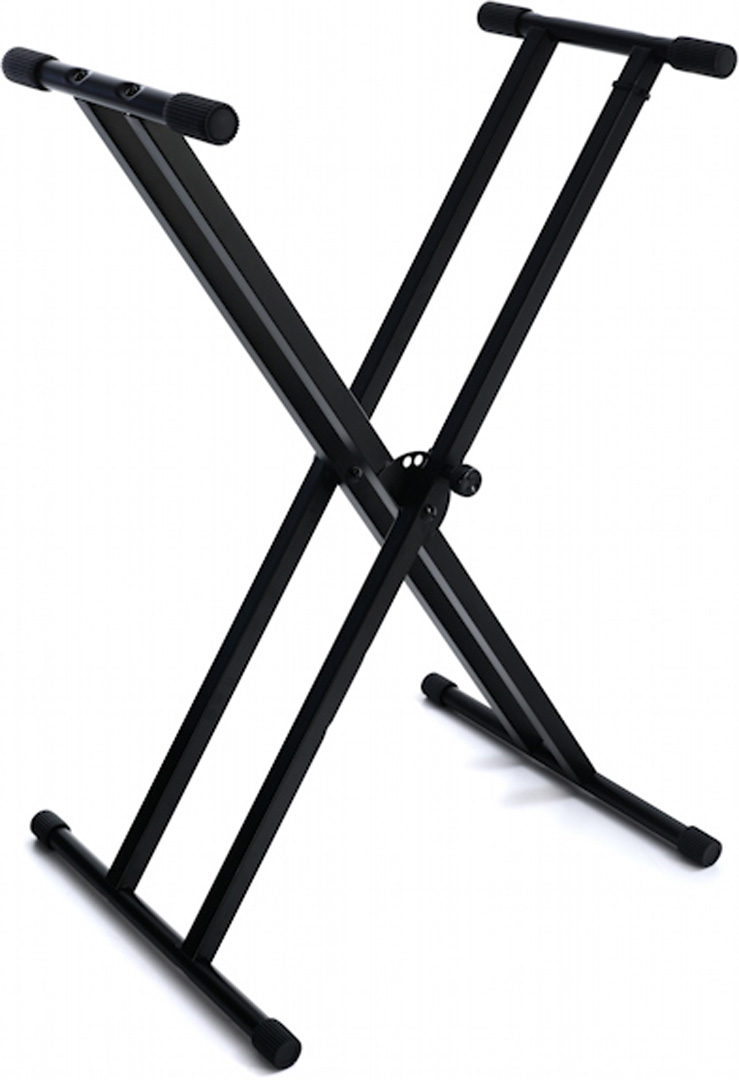
To get your keyboard at the right playing height, get an adjustable X-shaped keyboard stand. Inexpensive single-X stands are only suitable for the smallest, lightest keyboards. You will want a stand that is secure enough so that your keyboard won’t wobble while you are playing it, so consider a double-X design.
Caring for Your PSR-E Keyboard
Keep It Clean
It’s pretty simple: don’t eat or drink near your keyboard, and don’t spill liquids on it.
From time to time, you can wipe down your keyboard with a dry cloth or cleaning wipes to remove dust and prevent the buildup of grime, but don’t use any sprays or solvents.
Use a Keyboard Cover
If you leave your keyboard on its stand when you are not playing it, it’s a good idea to wrap a keyboard cover over it to protect it from dust or pet hair, both of which can work their way between the keys and interfere with the key contacts. Select a cover that is the right size for your instrument.
Transport and Store Your Keyboard in a Gig Bag
If you need to transport your PSR-E keyboard or store it in a closet, buy a zippered gig bag with carrying handles to protect it. Gig bags are available in many sizes and dimensions, so measure your keyboard to make sure you are buying a gig bag that will fit.
When you need help, Sweetwater has the answers!
Our knowledge base contains over 28,000 expertly written tech articles that will give you answers and help you get the most out of your gear. Our pro musicians and gear experts update content daily to keep you informed and on your way. Best of all, it’s totally FREE, and it’s just another reason that you get more at Sweetwater.com.

