

Working with Scenes on the Roland DJ-707M
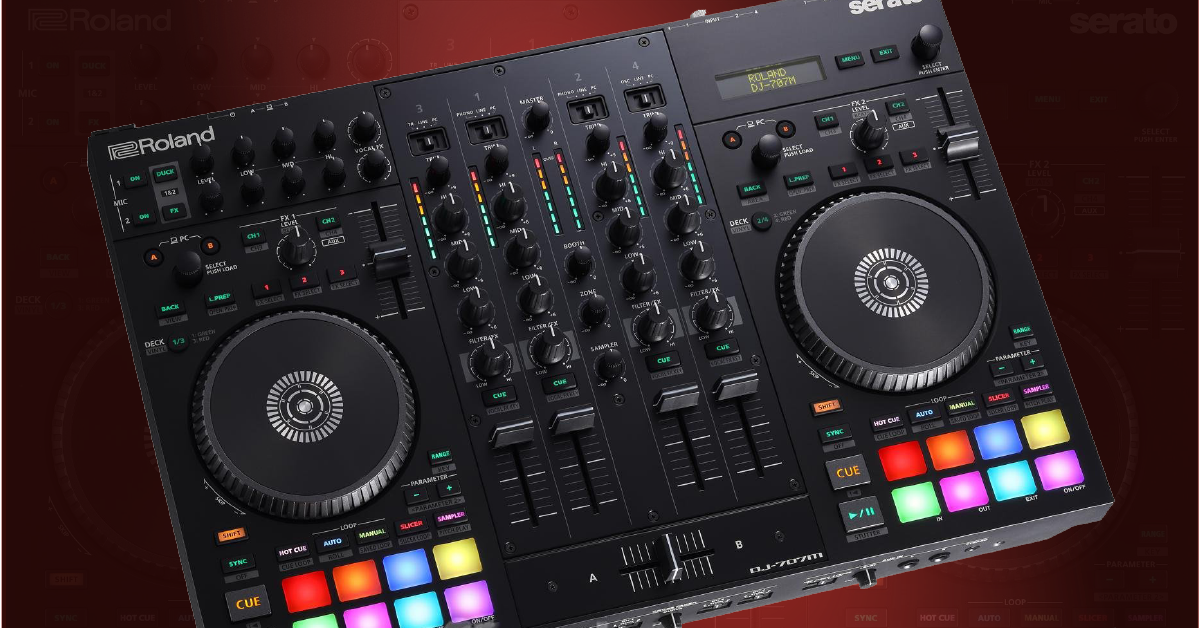
Getting started
In this guide, we will show you how to work with scenes on the Roland DJ-707M. Follow the instructions below to get started.
Create a scene with the DJ-707M
Scenes are DJ controller presets, which include different FX, routing, EQ, and output settings. You can edit existing presets or even create a scene from scratch.
- Press the MENU button, and then use the SELECT knob to select SCENE EDIT scroll through and adjust the following settings:
- MIXER: Effects, Anti-feedback, Mode, DVS Turntable
- MIC: Gain, EQ, Effects, Lo-cut, Noise gate, Pan, Ducking
- MSTR OUT: Routing assignment (All, Booth only, Deck only, Custom), EQ, Compression, Limiter, Mono, Pan, Attenuator
- BOOTH OUT: Routing assignment (All, Booth only, Deck only, Custom), EQ, Compression, Limiter, Mono, Pan, Attenuator
- ZONE OUT: Routing assignment (All, Booth only, Deck only, Custom), EQ, Compression, Limiter, Mono, Pan, Attenuator, Subwoofer
- Once the settings have been adjusted, press the EXIT pad, and then rotate the SELECT knob to enter the SAVE SCENE menu.
- Select the preset number where you wish to save it, and rename it.
- Use the SELECT knob to move to EXE, and then press it to save the preset.
Import and export DJ-707M scenes
You can also import and export scenes using your computer. This is useful if, for example, you’re using another DJ-707M. Just export It’s also recommended to export scenes before performing a factory reset. Follow these steps to import or export a scene.
Import a scene
- Hold the MENU button and turn the controller on.
- Rotate the SELECT knob, select EXPORT, and then press the knob.
- Connect the controller to a computer using the PC-A port.
- Navigate to My PC (Windows) or Computer (Mac), Double-click the Roland drive that appears.
- Open the IMPORT folder, and then copy and paste any .d7s file you want to import from your desktop or the folder they reside in.
Export a scene
- Hold the MENU button and turn the controller on.
- Rotate the SELECT knob, select EXPORT, and then press the knob.
- Connect the controller to a computer using the PC-A port.
- Navigate to My PC (Windows) or Computer (Mac), Double-click the Roland drive that appears, and then open the EXPORT folder.
- Copy and paste any .d7s file you want to export to the desktop or a folder.
When you need help, Sweetwater has the answers!
Our knowledge base contains over 28,000 expertly written tech articles that will give you answers and help you get the most out of your gear. Our pro musicians and gear experts update content daily to keep you informed and on your way. Best of all, it’s totally FREE, and it’s just another reason that you get more at Sweetwater.com.

