

Roland FANTOM EX System Upgrade Guide
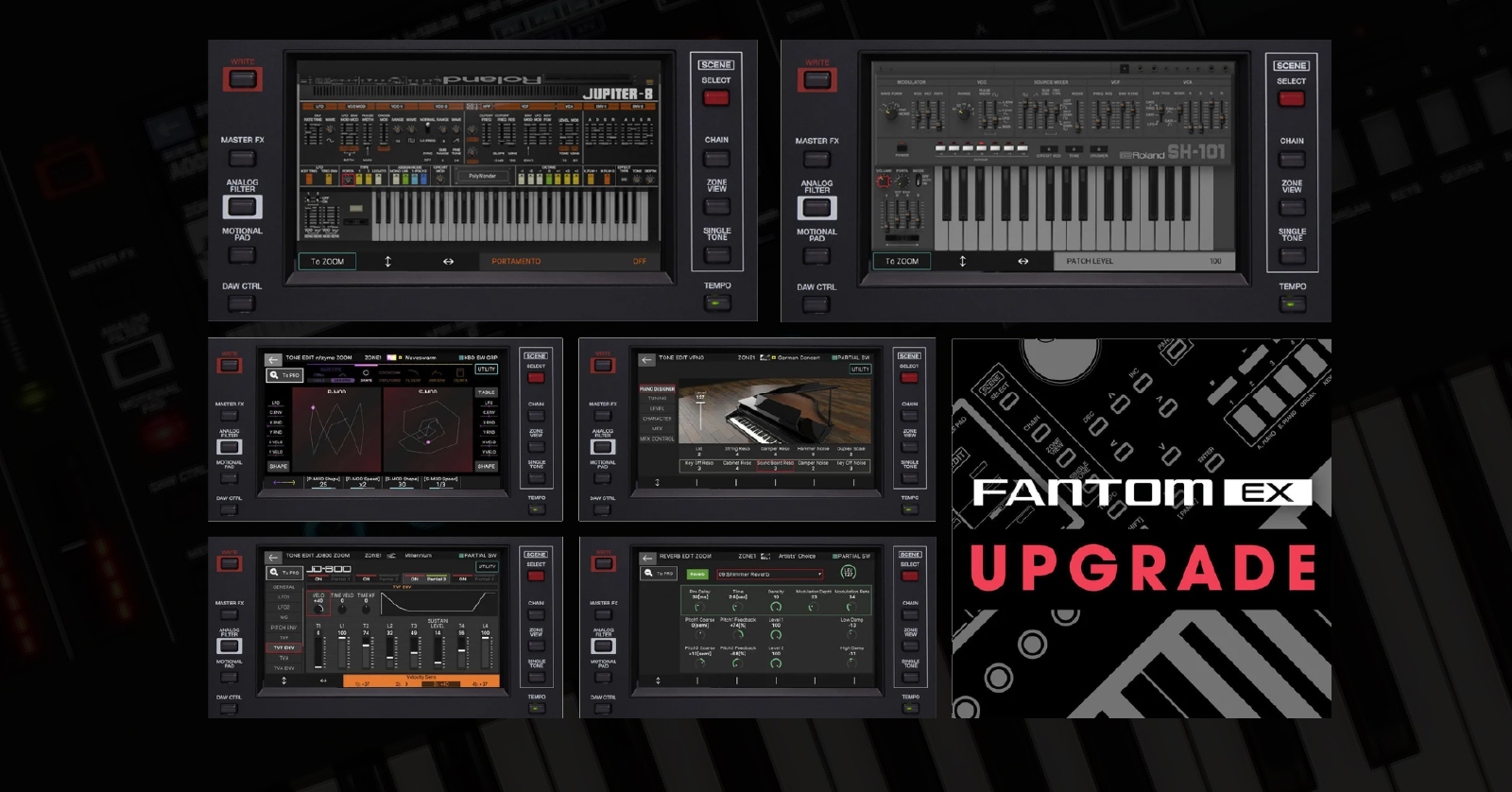
In this guide, we will show you how to activate, download, and install the Roland FANTOM EX System Upgrade. Also, watch Roland’s video for visual reference. Follow the instructions below to get started.
- Create a Roland Cloud Account
- Activate the System Upgrade
- Download, Transfer, and Install the FANTOM EX System Upgrade
Create a Roland Cloud Account
The first step in the process is to create a Roland Cloud account. Once that’s created, you must download and install Roland Cloud Manager, where you’ll activate and download the Upgrade. If you already have a Roland Cloud Account and Roland Cloud Manager, skip these steps, and continue to Activate the Expansion.
- Log in to your Roland account. If you don’t have one, you can create one here.
- Go to the Roland Cloud Manager download page. Click Download Now.
- On the next page, click Downloads, then choose Download for the OS you’ll use.
- Navigate to your Downloads folder. Launch the installer.
- PC: Double-click the Roland-Cloud-Manager-Installer .exe file, then follow the on-screen instructions.
- Mac: Double-click the .dmg file, double-click the .pkg file, and follow the on-screen instructions.
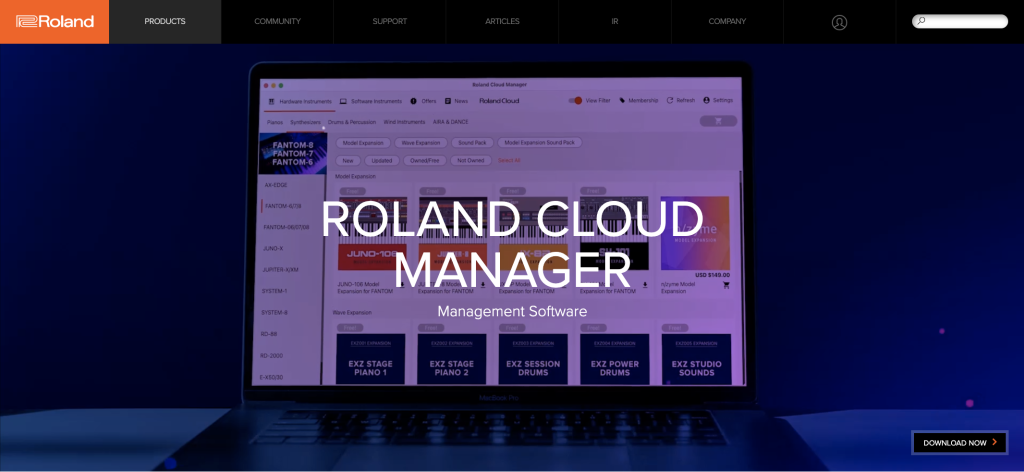
Click the image to download Roland Cloud Manager.
Activate the System Upgrade
Now that you’ve created an account, the next step is to register the activation key on the Roland Cloud website. Please note that you must be logged in to your account to register your product.
- Go to the Registration page. Enter the activation key you received from your Sweetwater Sales Engineer.
- Click Submit.
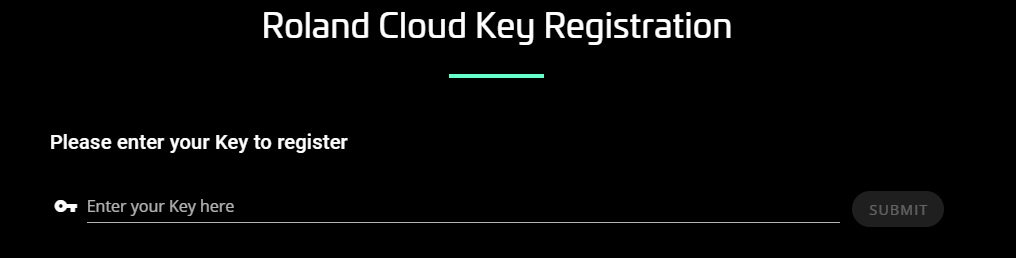
Click the image to register your FANTOM EX Upgrade.
Download, Transfer, and Install the FANTOM EX System Upgrade
NOTE:You cannot downgrade once you upgrade to FANTOM EX. Check out Roland’s Knowledge Base article to learn more.
Now that you have activated the license to your Roland account, you’ll need to format your USB thumb drive. Then you’ll download and install the System Update to your FANTOM.
Format the USB Thumb Drive
IMPORTANT:Formatting USB thumb drives will erase any stored data, so back up any important files beforehand!
Before installing the FANTOM EX Upgrade, you must format the USB thumb drive directly on your Roland FANTOM.
- Connect your USB thumb drive to the FANTOM’s USB MEMORY port.
- Press the MENU button, select UTILITY, and choose USB MEMORY FORMAT.
- Press OK.
- Once it’s formatted, remove the thumb drive from the FANTOM.
Download and Transfer Files
After formatting your USB thumb drive, you must download and transfer the files on your computer.
- Connect the newly formatted USB thumb drive to your computer.
- Launch Roland Cloud Manager, click Hardware Instruments, click Synthesizers, and select FANTOM-6/7/8.
- Download the System Update.
- Open your Downloads folder. Copy all the files starting from _DATA to M09x01_GrmnCnct.exz. Paste them to the root folder of the USB thumb drive.
- Do not paste any files into a folder.
- _DATA, FANTOM_UPA.BIN, and update are the files that will update your FANTOM.
- Copy and paste the update file to the USB thumb drive.
- Unzip SCENE_EXM007_n_zyme_.zip, SCENE_FANTOM_EX.zip, and Wallpaper_FANTOM_EX.zip. Copy and paste the folder to the USB thumb drive.
- Safely eject the thumb drive from your computer.
Update Your FANTOM
The final step in the process is to update the FANTOM Expansion and Scenes using the files you transferred to your USB thumb drive.
FANTOM Expansion Update
- With the FANTOM turned off, connect the USB thumb drive to the USB MEMORY port.
- Press and hold the WRITE button and turn on the FANTOM. Hold the WRITE button until you see Insert Memory to External on the FANTOM’s display.
- The FANTOM will now update. It will take approximately 10 minutes. Do not turn off the FANTOM or disconnect the USB thumb drive during the update process!
- Once you see Update (board 1) End…, disconnect the thumb drive from the USB MEMORY port and connect it to the USB EXTERNAL 1 port. It will then update again.
- After you see Update (board 2) End… (1),power down the FANTOM. Disconnect the USB thumb drive.
- Turn the FANTOM back on, press MENU, and select MENU. Use the first encoder to scroll down to INFO to confirm you are on the latest FANTOM EX version.
- Power down the FANTOM. Connect the USB thumb drive to the USB MEMORY port.
- Press and hold the TEMPO button and turn on the FANTOM. Keep holding the TEMPO button down until you see the Expansion screen.
- Press the INSTALL knob, then press and hold SHIFT while using the UP and DOWN buttons to select the expansions you wish to install. Once they’re highlighted, press INSTALL. The expansions will then be updated. The display will show you how long the update will take.
- Press the V-PIANO tab on the display. It should show as EMPTY. Press the INSTALL knob. Highlight the grand piano expansion, then press the INSTALL knob again.
- Follow this process for ACB EXPANSION.
- Power down the FANTOM, but leave the USB thumb drive connected this time.
FANTOM Scene Installation
- Once the FANTOM is fully powered down, turn it back on. You will now install the new Scenes.
- Press the MENU button, select UTILITY, and choose IMPORT.
- Select IMPORT SCENE, choose the scene folder you want to install, then press SELECT.
- Press NEXT, select all INIT SCENES, then press EXECUTE. Select NEXT to begin the update.
When you need help, Sweetwater has the answers!
Our knowledge base contains over 28,000 expertly written tech articles that will give you answers and help you get the most out of your gear. Our pro musicians and gear experts update content daily to keep you informed and on your way. Best of all, it’s totally FREE, and it’s just another reason that you get more at Sweetwater.com.

