

Mackie DLZ Creator Mixer Quickstart Guide
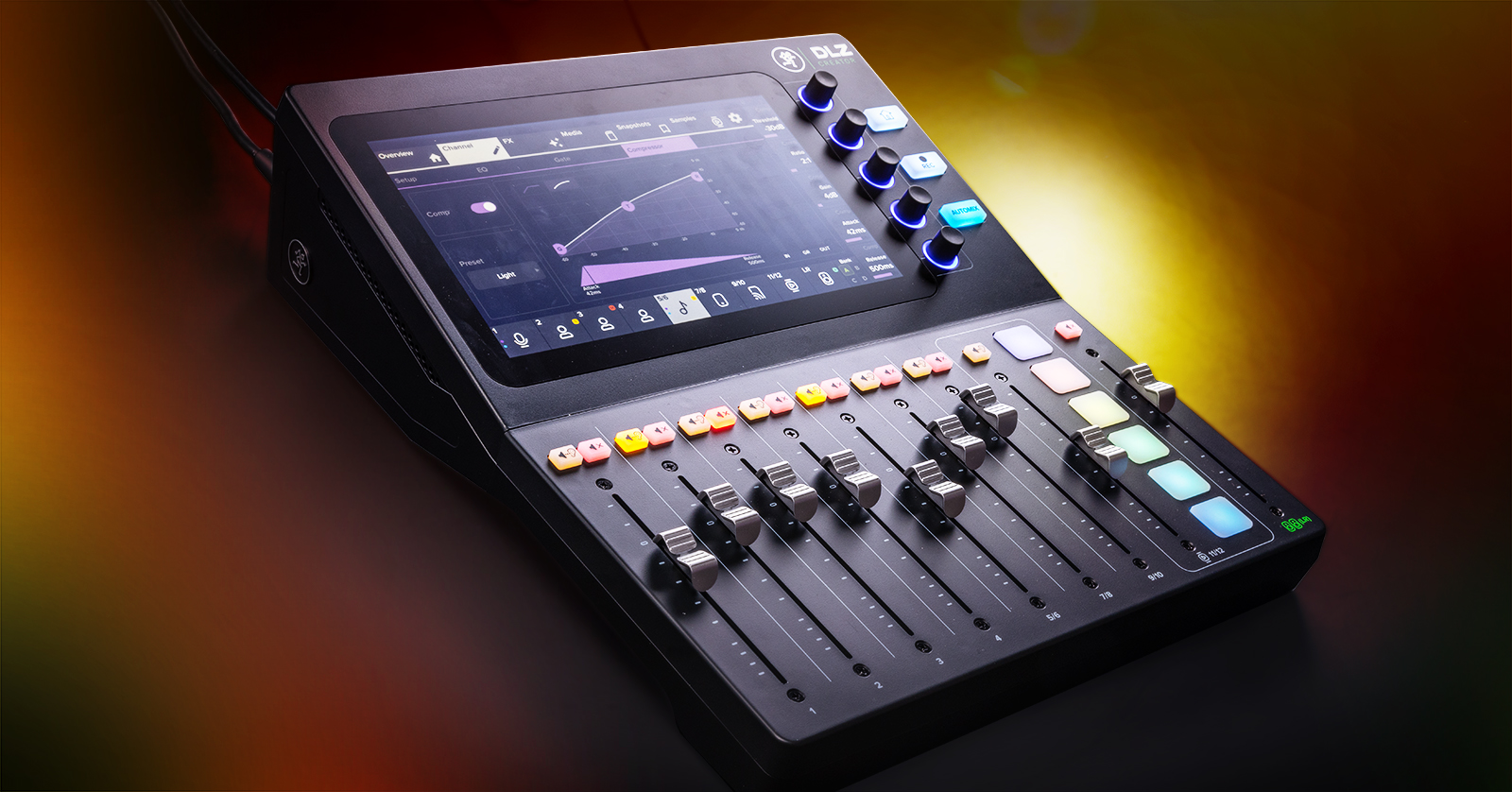
The Mackie DLZ Creator 12-channel digital mixer is a uniquely user-friendly platform for podcasters and content creators that lets you select your mode: Easy, Enhanced or Pro.
Your Mackie DLZ comes with a license code to download Tracktion’s Waveform OEM, a basic DAW to get you started recording on Mac or on Windows PC. You can also use it with any other DAW.
Good news: Mackie provides exceptional setup help right on the unit’s touchscreen. Online, they provide a number of short tutorial videos that we will link to below.
Let’s get started!
- Register Your Purchase with Mackie
- Mackie DLZ Setup and Connections
- Working with the Mackie DLZ
- Mackie’s DLZ Creator Tutorial Video Playlist
Register Your Purchase with Mackie
We know you are eager to get to work with your new mixer, but please take a minute to register your purchase with Mackie. You will need a PDF copy of your Sweetwater receipt.
Registration
Go to mackie.com. In the upper-right corner of the screen, click the person icon next to the shopping cart. Log in to your existing account, or click on Don’t have an account? to create a new one. Fill out the information, create a password, and click the Submit button.
Mackie will send you an activation email. Open it and click on the link to confirm your account creation. Then you can return to the login page and log in with your username and password.
You will be sent to the Registered Products page. Click on the Register new product button.
Fill out the information, including the serial number, which is found on the underside of the DLZ. Under Receipt, click on Choose File to upload your copy of your sales receipt, providing proof of purchase.
Having registered, Mackie will send you email notifications when firmware updates are released in the future.
Download the Windows Driver
If you will be connecting the DLZ Creator to a Mac, no driver is needed. If you are using it with a Windows PC, you need to download the newest version of the Mackie USB Driver for PC.
You can find it by going to the Mackie DLZ Creator product page. Scroll all the way down to the bottom, then click on Downloads & Resources.
In the expanded list, find the USB Driver for PC. Download it and follow the instructions to install it.
Download the Owner’s Manual
In the same location, under Downloads & Resources, you will see the Owner’s Manual. Download it; you will refer to it often.
Update the Mackie DLZ Creator Firmware
TIP: When the DLZ first became available, the Ethernet port was not yet functional. Upgrading the firmware to Version 1.1 or higher enables the Ethernet port to use the NDI (Network Device Interface) protocol for multi-channel audio over Ethernet to apps and hardware that support NDI.
In the box you will find a card reminding you to upgrade the firmware.
From time to time Mackie will be providing new firmware with new features. Make sure you are running the newest version. Head on over to our Mackie DLZ Creator Firmware Update guide.
Come back here after you are done, and we’ll help you get up and running.
Tracktion’s Waveform OEM DAW Software
Your Mackie DLZ comes with the Tracktion’s Waveform OEM DAW (digital audio workstation) app for Mac and for Windows PC. It also comes with the DAW Essentials Collection, 16 signal processing plug-ins you can use with Waveform or with any of the major DAWs from other manufacturers.
Inside the box, find the card labeled Keep this card. On the back is a license code.
Go to marketplace.tracktion.com/shop/redeem.
Follow the instructions to enter your license code in the Enter Your Redeem Code field. Provide contact information and set up an account with Tracktion. Click the Submit button.
Follow the instructions to download, install, and register Waveform OEM and the DAW Essentials Collection.
Mackie DLZ Setup and Connections
Back Panel Connections
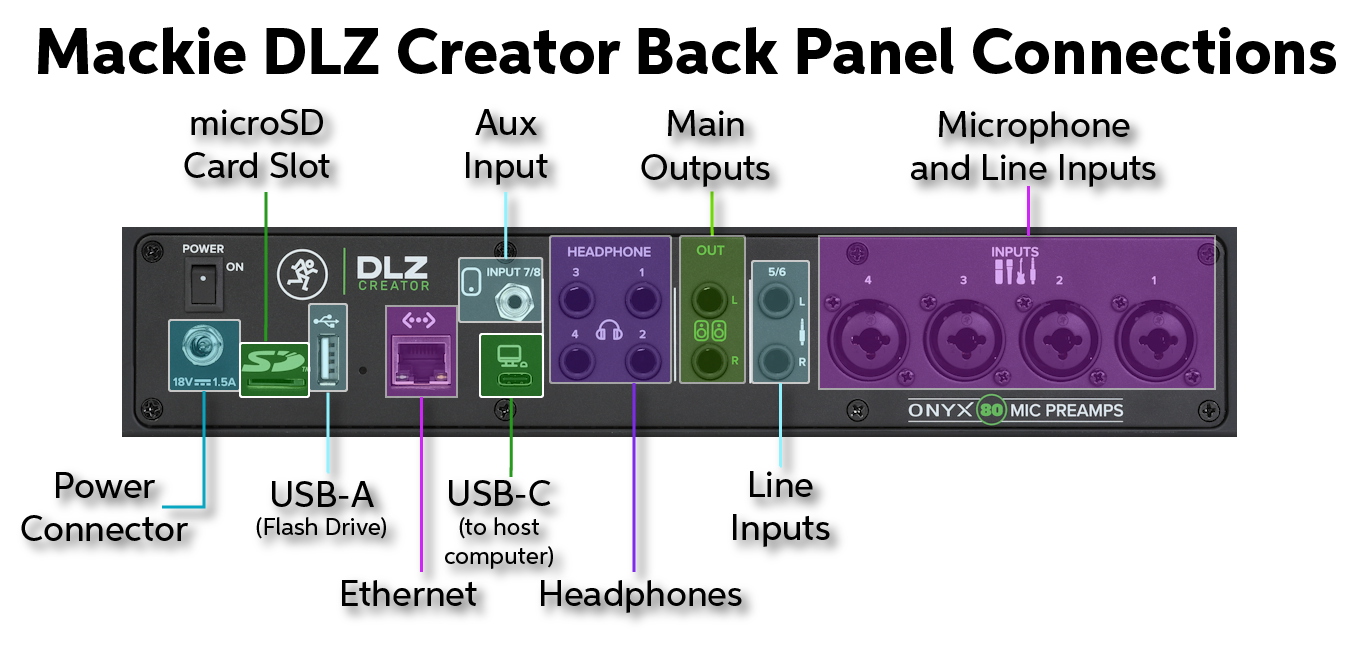
- Power Connector. The included 18V DC power supply has a locking barrel connector. Insert its plug into the jack and carefully screw in the locking outer ring.
- Power Switch
- Microphone Inputs. Channels 1 through 4 provide combi jacks for mono inputs. Each jack can accept either a balanced XLR input for a microphone or line-level signal, an unbalanced 1/4-inch TS connector, or a balanced TRS connector.
- 5/6 Line Inputs. Channels 5 and 6 accept cables with 1/4-inch TS or TRS connections for line-level instruments, effects devices, or audio sources. Use the L input for a mono sound source. The R input is for the other side of a stereo connection.
- Main Outputs. Connect to your power amplifier or powered speakers to listen to the mixer’s output. The L and R outputs accept 1/4-inch TS or TRS connectors for unbalanced or balanced signals.
- Headphone Outputs. Connect 1/4-inch TRS stereo headphones. The DLZ provides connections for four listeners, and you can configure a different monitor mix for each person.
- Stereo Line Input (Aux Input). This 1/8-inch TRS jack is for hooking up audio from an external stereo sound source such as a smartphone, an MP3 player, or a CD player. It is only an input; it does not provide a TRRS connection for sending audio back to the device, so it cannot be used for phone calls. You can use the Bluetooth connection for that.
- USB-C Computer Connection. Connect this to your Mac or your Windows PC using a USB-C cable or the included USB-C to USB-A cable. The DLZ outputs multitrack audio over USB for streaming or recording in your DAW. It also accepts stereo audio input over USB from a computer, a phone, or a tablet.
- Ethernet Port. Installing Firmware 1.1 and higher enables this port for audio over Ethernet using the NDI (Network Device Interface) protocol.
- USB-A Port. Connect a USB flash drive for direct stereo recording. A flash drive can also be used to update the firmware.
- microSD Card Slot. Insert a microSD card, which can be used for multitrack recording or for playing back stereo audio.
- Bluetooth. While there is, of course, no jack involved, the DLZ provides a Bluetooth connection for sending audio to and from a smartphone so someone can call in to your session. Learn more in the DLZ Owner’s Manual, Chapter 11: Settings Tab, on page 68, Settings > Bluetooth/Disk.
The DLZ’s onscreen Setup Assistant, which we will discuss below, actually walks you through connecting microphones and sound sources to the mixer and shows you how to configure inputs and set levels.
Front Panel Controls
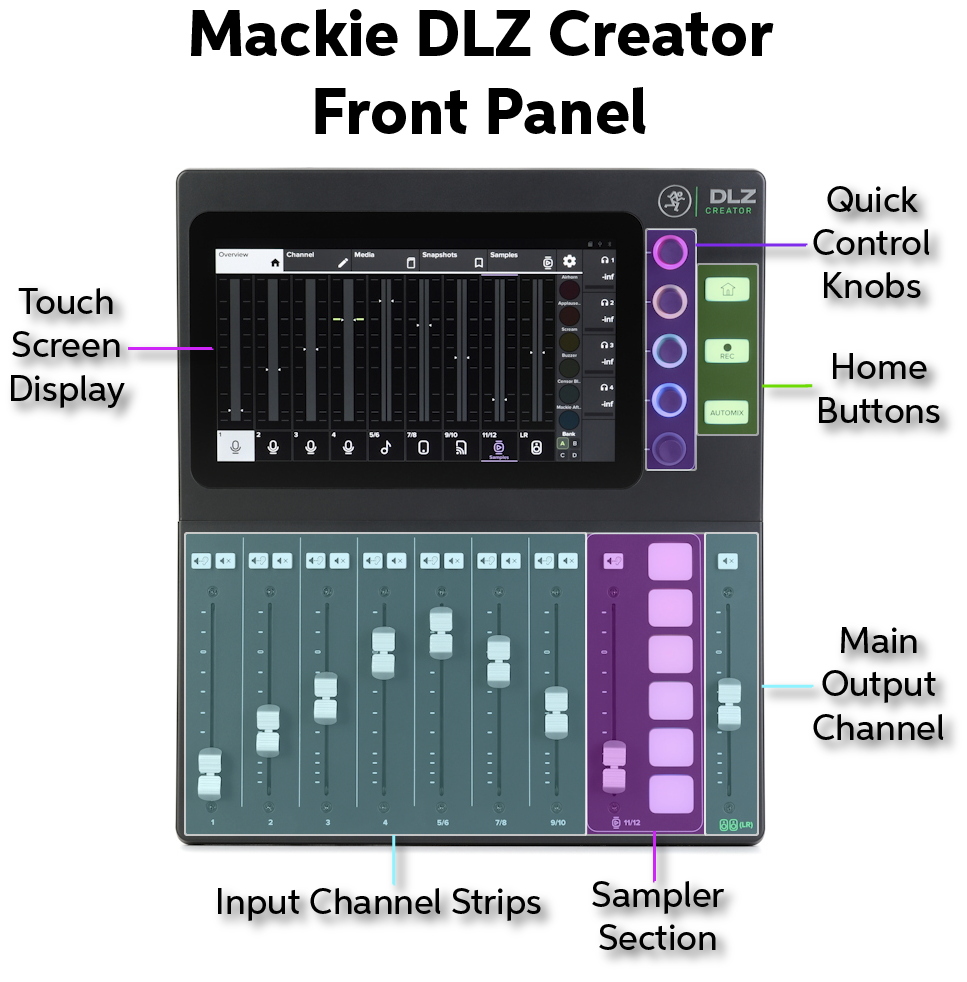
- Input Channel Strips. The first four channel strips are mono, and the next three are stereo pairs. They provide a fader, which adjusts the volume level, an orange Solo button, and a red Mute button.
- Sampler Section. A fader and a Solo button control the volume from six sample pads which play back pre-recorded sounds. There are four banks of sounds. The first bank is preset, and the next three banks can hold whatever samples you load into them from a microSD card or USB flash drive. Learn more in the DLZ Owner’s Manual, Chapter 10: Samples Tab.
- Main Output Channel. The main fader adjusts the level of the stereo mix output. The Mute button turns off the main output.
- Home, Record, and Automix buttons.
- Home returns the display screen to its home position.
- Rec enables the Recording Banner interface on the display to record internally to a microSD card or USB flash drive. Learn more in the DLZ Owner’s Manual, Chapter 13: Recording.
- Automix enables the Automix Banner interface on the display. When you turn Automix on, you can set different priority levels for the first four input channels so that the system will automatically mix certain channels louder than others. For example, you may wish to give priority to the channel of the microphone for the host of the podcast so that the host is always heard clearly if multiple people are speaking. Learn more in the DLZ Owner’s Manual, Chapter 3: DLZ Creator Top Panel Features: Automix.
- Quick Control Knobs. These five knobs are used to adjust different parameter values, depending on which page is displayed on the screen to the left. The halos around the knobs change color depending on the context.
- DLZ Creator Touchscreen Display. The display provides multiple tabs whose functions, submenus, and parameters depend upon which of the three Control Modes you select. The tabs are:
- Overview (Home)
- Channel setup.Parameters includeinput gain, enabling 48V phantom power for condenser microphones, send levels, dynamics and effects levels, channel naming, icons, and colors.
- FX setup.Reverb and Delay settings.
- Media.Provides access to files on a USB thumb drive or microSD card.
- Snapshots. This section enables you to save the entire state of the settings on the DLZ Creator as a preset. You can set up multiple different snapshots for instant recall. Learn more in the DLZ Owner’s Manual, Chapter 9: Snapshots Tab.
- Samples. Settings for the Sampler Section discussed above.
- Settings.Global system settings for the mixer, such as choosing a Control Mode, screen and button brightness levels, Bluetooth pairing, and recording.
Working with the Mackie DLZ
Control Modes
When you first power on the Mackie DLZ Creator, it takes a couple of minutes to boot up. The display screen prompts you to choose one of three Control Modes:
- Easy gives you only the essential controls and automates features for quick and easy setup.
- Enhanced gives you simplified controls but gives you access to some custom tone-shaping features.
- Pro gives you full access to everything and has full-featured controls with extended parameters for precision processing.
Setup Assistant
On the Control Mode screen, with the Setup Assistant toggled on, tapping Next will walk you through connecting and setting up headphones, microphones, and other devices.
The DLZ’s display will explain to you how to hook up each source one and a time. It will walk you through setting the levels on each input channel. There’s even a Listen and Set for Me button which will automatically adjust input gain levels based on the strength of each signal.
After you work through the four microphone channels, there are additional steps for line-level inputs, inputs over USB audio from a computer, the Aux audio input, and input from a Bluetooth source or Disk, which refers to a USB flash drive or microSD card.
The last screen explains how to hook up speakers.
Welcome Tour
Then it’s onto the Welcome Tour, which shows pop-up menus that explain the main features of navigating the interface of the touch screen to accomplish setting up your session. You can tap Skip Tour if you are getting the hang of it and want to get to work.
You can start the Tour again at any time by tapping the System gear icon, which is visible in every display mode. Tap the About tab, and then the Retake Tour button.
Mackie’s DLZ Creator Tutorial Video Playlist
Mackie TV provides a series of short videos that we recommend watching in order.
DLZ Creator Overview Playlist
1. Introducing the DLZ Creator Mixer for Podcasting and Content Creation
2. Mackie DLZ Creator – Hardware Tour
3. Getting Ready for Your First Podcast in Minutes
4. Creating Fast with Easy Mode
5. Expanding Control with Enhanced Mode
6. Maximizing Your Creative Tools with Pro Mode
7. Quick Headphone Mixing in Pro Mode
8. Managing Four Mics at Once with AutoMix
9. Hosting Call-In Guests
How to Connect DLZ Creator to OBS using the NDI protocol over Ethernet
Related Content
When you need help, Sweetwater has the answers!
Our knowledge base contains over 28,000 expertly written tech articles that will give you answers and help you get the most out of your gear. Our pro musicians and gear experts update content daily to keep you informed and on your way. Best of all, it’s totally FREE, and it’s just another reason that you get more at Sweetwater.com.

