
ISOVOX Software Activation Instructions
In this guide, we will show you how to activate, download, and install your new ISOPLUG plug-in. Follow the sections below to get started.
Download and install
The download and installation process is simple. After you have downloaded the plug-in you must move the file to the correct plug-in directory. Check out our guide on File Management to learn more about default plug-in directories on both PC and Mac.
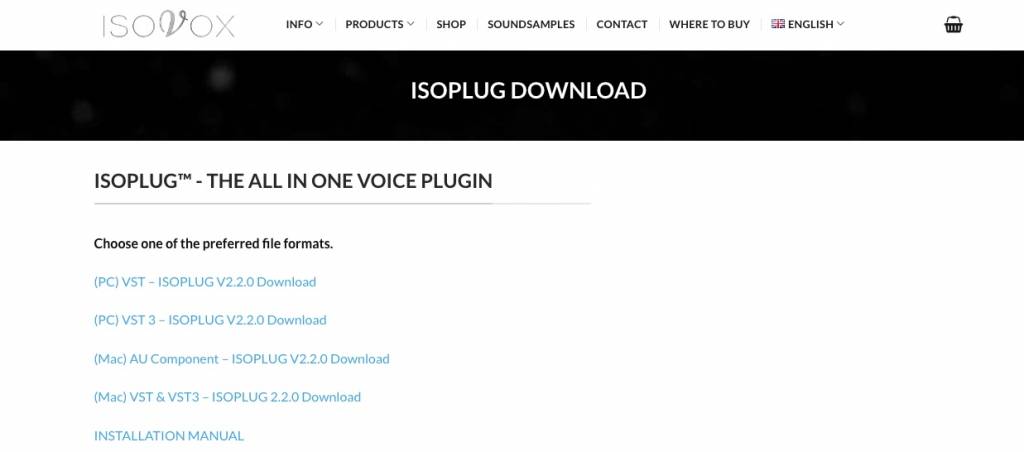
- Go to the ISOPLUG plug-in download page and download the latest version for your OS.
- Navigate to your Downloads folder, then locate the plug-in file.
- Move the file to the primary plug-in path set within your DAW.
- PC: The default VST3 plug-in directory will typically be C:\Program Files\Common Files\VST3.
- Mac: The default directory will be /Library/Audio/Plug-Ins/Components.
Activate the plug-in
Once you’ve moved the plug-in to your primary plug-in path, the final step is to activate it within your DAW.
- Launch your DAW, create a project, then add it as an effect on the audio track.
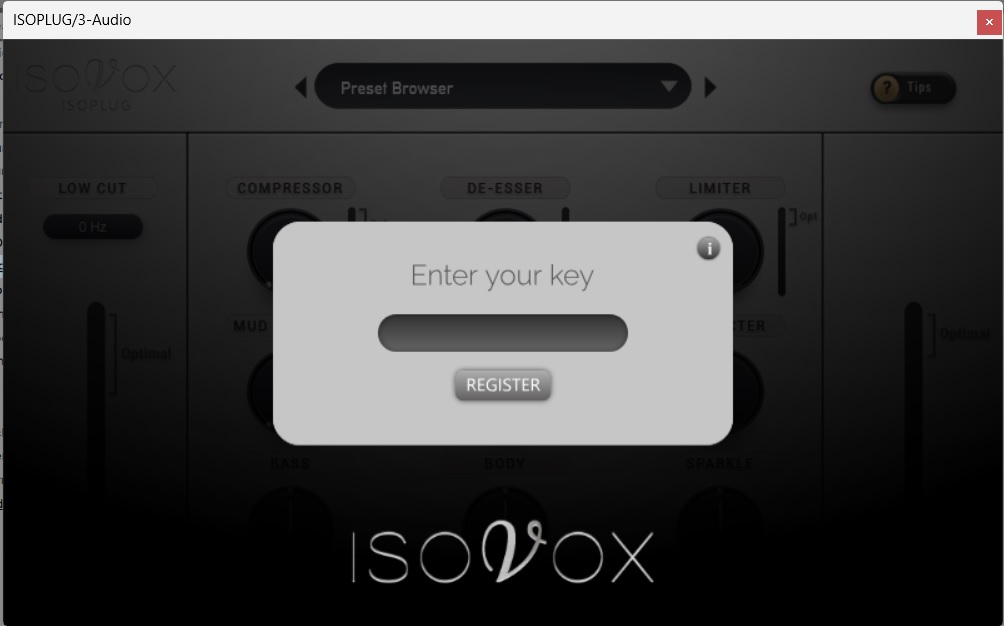
- Copy the Activation Code you received from your Sweetwater Sales Engineer, paste it in the Enter Key field, then click Register.
- Click Connect. This will take you to the ISOPLUG Activation website.
- Enter your email address, paste the Activation Code again, then click Subscribe.
When you need help, Sweetwater has the answers!
Our knowledge base contains over 28,000 expertly written tech articles that will give you answers and help you get the most out of your gear. Our pro musicians and gear experts update content daily to keep you informed and on your way. Best of all, it’s totally FREE, and it’s just another reason that you get more at Sweetwater.com.

