

How to update the firmware on the Behringer X32
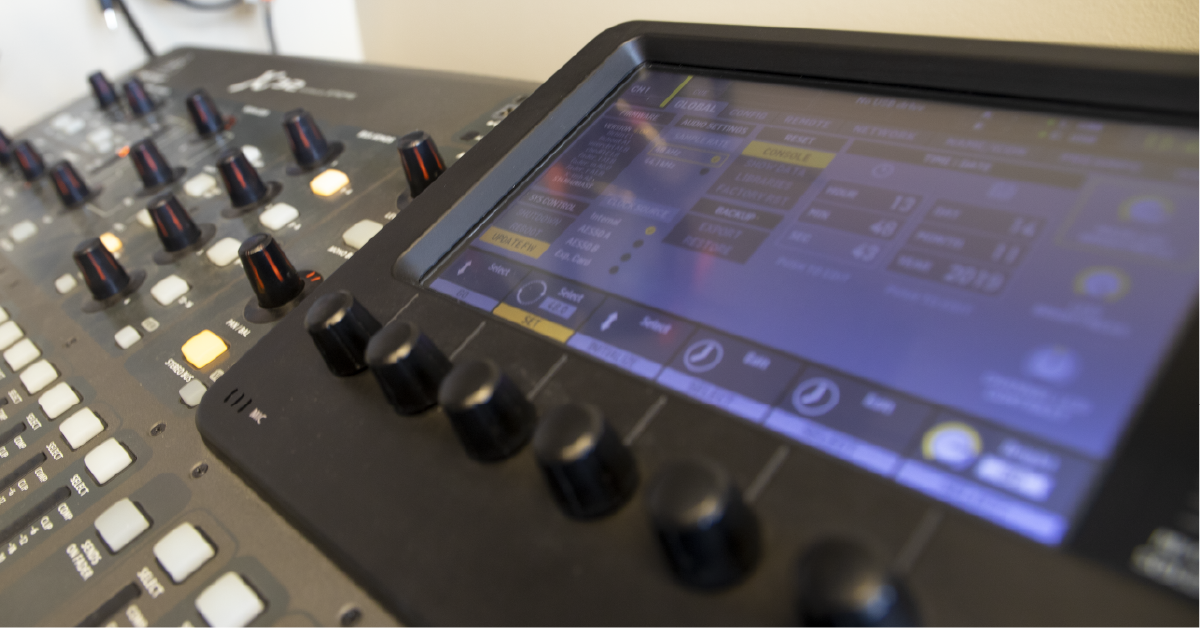
In this article, we will show you how to update the firmware on your Behringer X32 and check what version you’re currently running. We’ll also share a few tips and tricks that will make your update go smooth and easy.
Check the firmware version
Before we dive into updating, let’s check what X32 firmware version you’re running. If your current firmware version is out-of-date, you will need to download the latest version to a USB stick and transfer it to the X32.
- Press Setup and go to the Global tab.
- Check the firmware version number.
- Go to the Behringer X32 product page. Click Downloads.
- Look for the newest version of the Firmware.
- Compare your version number to the latest available from Behringer.
Update the X32 firmware
Before updating the firmware on the X32, make sure the USB thumb drive is formatted as FAT32. Formatting will erase all contents stored on the drive. Be sure that you back up any data on your drive before formatting. Follow the instructions below to perform the firmware update.
- Go to the Behringer X32 product page. Click Downloads.
- Locate the latest version of the firmware and download it.
- Go to your Downloads folder and double-click the X32 firmware folder.
- PC: Right-click the .zip file, select Extract all…, and then click Extract. Open the new folder to locate the .update file.
- Mac: Double-click the .zip file to decompress it. Open the new folder to locate the .update file.
- Copy the firmware file to a root directory USB stick.
- Insert the USB thumb drive, then on the X32, press Setup, press the Global tab, and select Update FW.
- If you’re having issues, you can also force the update by inserting the USB thumb drive, then holding down the View button in the USB Recorder section while powering on the mixer.
Firmware update FAQ
Here are a few tips and tricks we’ve found to make the firmware update on an X32 go as smooth as possible.
Flash drives and X32 firmware
- Before using a USB thumb drive with an X32, format it as FAT32. If you’re not sure how to format the external drive, learn more about formatting on PC and Mac.
- Firmware updates will erase all board settings saved on the X32. This includes routing, scenes, snippets, and other presets. Back up all of your data to a properly formatted USB thumb drive before proceeding.
- If the firmware isn’t updating on the X32, change the sample rate then begin the update again.
When you need help, Sweetwater has the answers!
Our knowledge base contains over 28,000 expertly written tech articles that will give you answers and help you get the most out of your gear. Our pro musicians and gear experts update content daily to keep you informed and on your way. Best of all, it’s totally FREE, and it’s just another reason that you get more at Sweetwater.com.


