

eLicenser Control Center Troubleshooting Guide
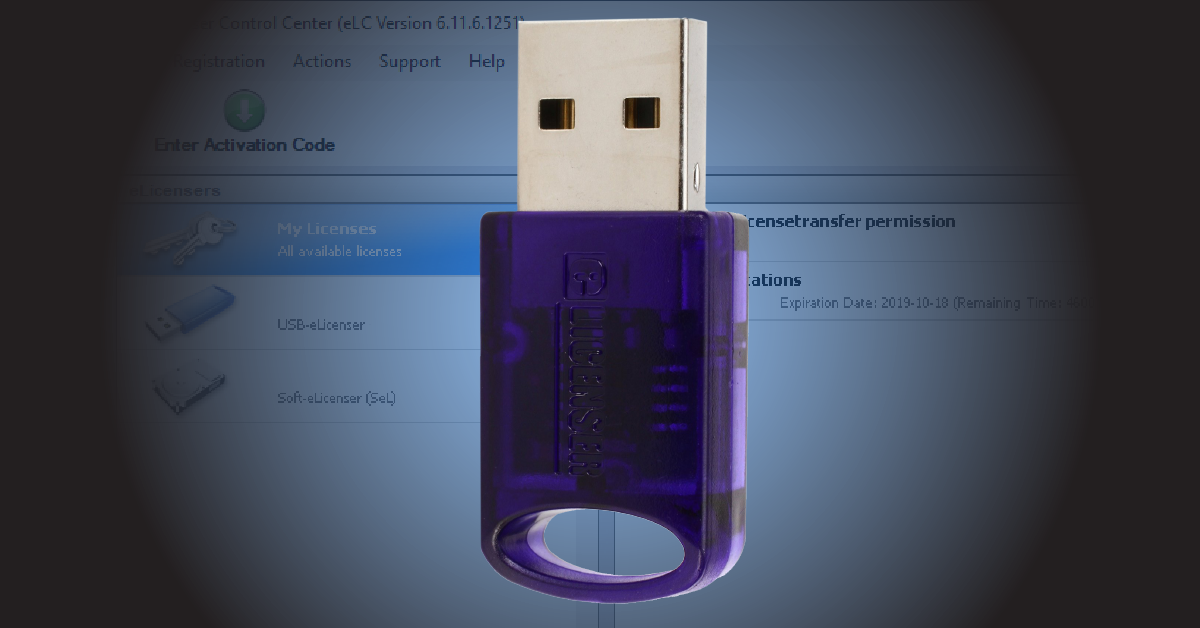
In this guide, we will show you how to resolve issues with licenses managed in eLicenser Control Center (eLCC). Whether the eLCC app is out of date, you receive Soft eLicenser errors, or your USB key isn’t detected, we’ll walk you through everything to get back up and running. Follow the sections below to get started.
- Reconnect the eLicenser key
- Run the Maintenance tasks
- Reinstall eLicenser Control Center
- Run eLC Helper (Soft eLicenser only)
- Contact vendor support
Reconnect the eLicenser key
When your licenses are stored onto a USB eLicenser key, the first thing to do is try and reconnect it. While eLicenser keys can work perfectly fine on USB hubs, they sometimes may not appear if the hub isn’t supplying enough power; particularly with passive hubs. If you do need to use a USB hub, choose one with a dedicated power supply. This will ensure each connected device receives enough power from the hub.
If the USB dongle still isn’t showing up, connect it directly to your computer and try different ports. If the eLicenser key still isn’t showing up, the next step is to run maintenance tasks.
Run the Maintenance tasks
Performing the maintenance tasks on a regular basis can help fix issues with both soft and hardware eLicenser keys. It’s a six-step process which includes recovering soft e-licenses, cleaning the eLCC memory, and updating the database. To perform the maintenance tasks, all you need to do is click the Gear icon in the top of the main eLCC window. We recommend checking the box which allows the Maintenance tasks to be performed every time you launch the eLCC app.
If you are still receiving errors, the next step is to reinstall the latest version of eLicenser Control Center.
Reinstall eLicenser Control Center
The eLicenser Control Center app is updated frequently, so errors may be caused due to the application being out of date. Uninstalling and reinstalling the latest version of eLCC can solve most issues.
- PC users: Be sure to launch the eLicenser installer and eLCC as Administrator. Do this by right-clicking the installer then selecting Run as Administrator.
Run eLC Helper application (Soft-eLicensers only)
IMPORTANT: Only run the eLC Helper app if you receive Soft-eLicenser errors. Running the app will delete any existing Soft e-Licensers.
In rare cases that you receive an error stating your Soft-eLicenser is missing, this means the license failed to be created during installation. When this happens, you cannot request the activation code needed for permanent activation of the program nor can you download licenses. Running the eLC Helper app will automatically reinstall eLicenser Control Center and force the system to create the unique Soft-eLicenser key necessary to activate your software.
Mac installation:
- Close all programs and download eLC Installation Helper for your OS version:
- Navigate to your Downloads folder, double-click the .dmg file, and run eLC Installation Helper.app.
- Launch eLicenser Control Center.
PC:
- Close all programs download eLC Installation Helper for your OS version:
- Navigate to your Downloads folder, right-click the installer, and click Run as Administrator.
- Launch eLicenser Control Center.
Contact vendor support
If your USB eLicenser dongle still isn’t being recognized, there may be an issue with the key itself. If the USB dongle is broken, lost, or stolen, you will need to purchase a new eLicenser key and contact vendor support to resolve the issue.
If you are using a Steinberg product, you can request Zero-Downtime for free. This provides a temporary license of 25 operating hours until a new permanent license is deposited into your Steinberg account. To see how to request Zero-Downtime, visit the Steinberg website.
When you need help, Sweetwater has the answers!
Our knowledge base contains over 28,000 expertly written tech articles that will give you answers and help you get the most out of your gear. Our pro musicians and gear experts update content daily to keep you informed and on your way. Best of all, it’s totally FREE, and it’s just another reason that you get more at Sweetwater.com.

