
D16 Group Software Activation Instructions
In this guide, we will show you how to register and install your new D16 Group software. Follow the sections below to get started.
IMPORTANT: The “Code” in your activation e-mail is known as a Serial Number.
Register the software
To begin, you first need to create an account and register the software with D16 Group. If you’ve already made the accounts, you don’t need to create new ones. Just make sure to continue using the same accounts. Follow these steps to register the software.
- Log in to your D16 Group account. If you don’t have an account, you can create one here.
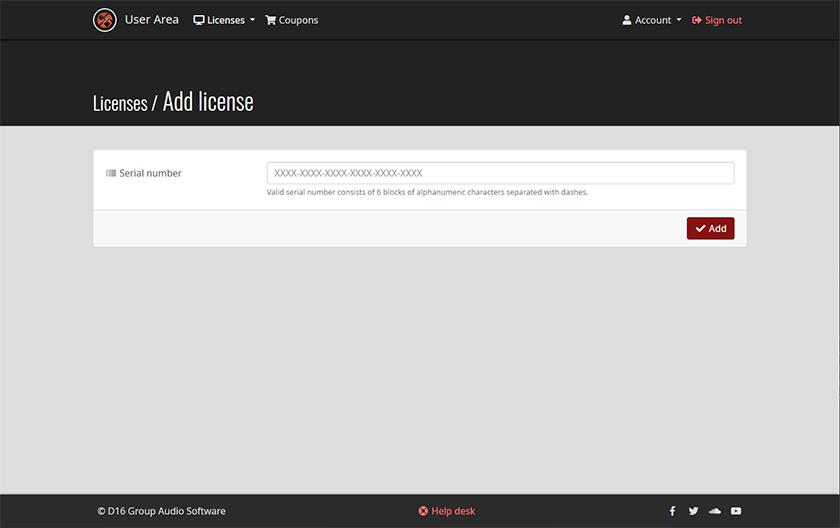
- Once logged into your user area, click the Add License button.
- Enter the Serial Number you received from your Sweetwater Sales Engineer, then click Add.
Download & install the software
Once the plug-in has been registered, the next step is to download and install it. Go to the User Area, and select the plug-in installer for your OS. Once the software has been downloaded, it will need to be installed. Follow these steps to install your product.
- Locate the plug-in you registered in your User Area, and click Download to select the installer for your OS.
- Open your Downloads folder and double-click the .exe file (PC) or .pkg file (Mac) and follow the on-screen instructions.
Activate the plug-in
The final step in the registration process is to load it in your DAW and activate it with a .key file provided when entering your serial number. Follow these steps to activate your new plug-in.
IMPORTANT: We recommend downloading the .key file to a USB thumb drive for easy access.
- Go to the User area of your account, locate your plug-in and click the Activate button.
- Select the download location for your .key file.
- Launch your DAW, and load the plug-in onto a new track.
- When prompted, navigate to the location where the .key file was downloaded to.
- Click Load file to complete the authorization process.
Offline activation time limit
If using an offline computer, you have 72 hours from the time you download the auth file. After 72 hours, you will get an error and will need to follow steps 3 through 5 again.
When you need help, Sweetwater has the answers!
Our knowledge base contains over 28,000 expertly written tech articles that will give you answers and help you get the most out of your gear. Our pro musicians and gear experts update content daily to keep you informed and on your way. Best of all, it’s totally FREE, and it’s just another reason that you get more at Sweetwater.com.

