

BOSS PX-1 Plugout FX Pedal Firmware Update
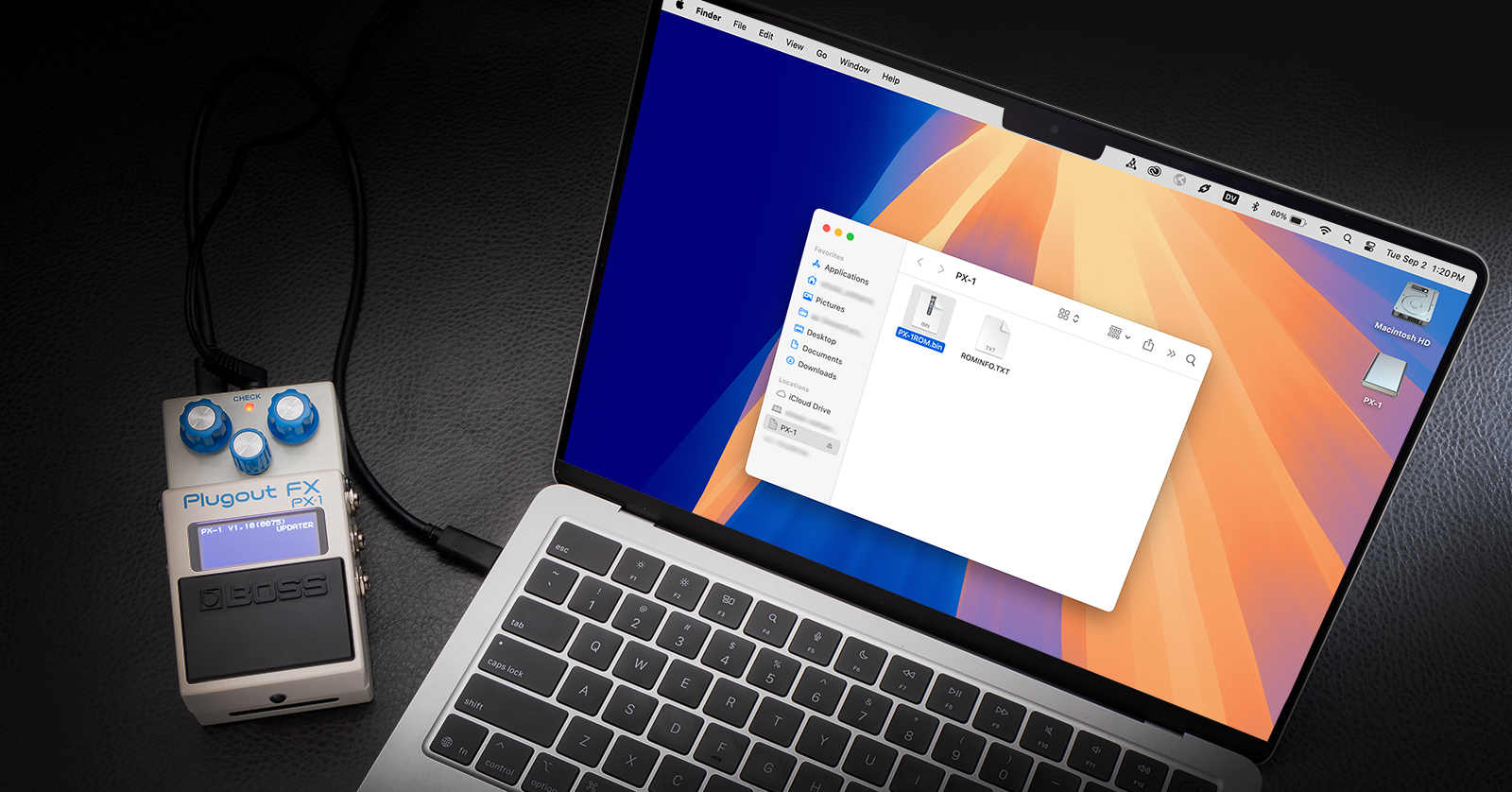
From time to time BOSS will provide firmware updates for the PX-1 that will fix bugs and may provide additional features. BOSS makes it easy to stay up-to-date with the newest firmware. Let’s get started.
BOSS refers to a devices’ firmware as the “System Program.”
The first time you take your PX-1 out of the box, update the firmware by connecting it to your Mac or Windows PC. This ensures that your System Program is up to the version required to connect to the BOSS Effect Loader app for mobile devices.
Subsequently, once you have the PX-1 working with the Boss Effect Loader app on iPhone, iPad or Android device, if your device has a USB-C port, you can use the app to perform future firmware updates.
IMPORTANT: When updating the firmware on your PX-1, you must power the unit using the included 9V AC adapter power supply in addition to connecting the USB-C cable. Do not attempt to update the firmware if only the USB-C is connected.
IMPORTANT: Do not power off your PX-1 while the update is in progress. If the power is interrupted, this will leave the unit in an inoperable state, requiring repair work.
Using your Mac or Windows PC
Determine the firmware version installed on your PX-1
- On your PX-1, click the center knob to select the Menu functions.
- Click the right knob repeatedly to navigate to the Version screen.
- Take note of the number next to “APP,” for example “APP: 1.10.” This is your System Program, or firmware, version number.
Check for the newest firmware from BOSS
- On your Mac or Windows PC, go to the BOSS PX-1 Downloads page.
- Under “Updates and Drivers,” check the version number on the newest firmware update link, for example “PX-1 System Program (Ver.1.10).”
If the version number is the same as that of the system program running on your PX-1, there’s no update needed at this time.
If the version number of the update on the website is higher, click on the link and follow the prompts to accept the terms and conditions.
- On the next page, you’ll see a full set of instructions; please review them.
- Scroll down to the bottom of the page, check “I agree and wish to proceed with download,” and click Download File.
- Go to your Downloads folder and extract the downloaded system program file, which will have a name similar to “px1_sys_v110.zip.”
- You will see a folder with the same name. It should contain two files with names similar to “ROMINFO.TXT” and “PX-1ROM.bin.”
Connect Your PX-1 to Your Computer
Put the PX-1 into firmware update mode.
- With the power off on the PX-1 and your computer booted up, connect a USB-C data cable to your PX-1, and connect the other end to a USB port on your computer using and adaptor cable if needed.
- On the PX-1, hold down the pedal switch while plugging in the 9 volt AC adapter. The PX-1 will power up and “Updater” will appear on the display.
- On your computer, a new drive icon named “PX-1” will appear, in My Programs on Windows, or in the Finder on macOS. Open it.
- Copy both files from the update folder, ROMINFO.TXT and PX-1ROM.bin, to the root of the PX-1 drive. Copy the files themselves; do not copy the folder that contains the files.
- Perform the Eject command on your Mac or PC to safely dismount the PX-1 drive.
- On Windows, right-click on the PX-1 icon and choose Eject.
- On macOS, you can command-click or right-click on the PX-1 icon and choose Eject.
After the drive has been ejected, the update process will begin on the PX-1.
Wait patiently while the PX-1 installs the update. Do not disconnect the power.
When the message “Update Completed” appears on the PX-1’s display, you can disconnect the power.
Connect the power again and make sure the PX-1 boots up normally. You can disconnect the USB-C cable.
Confirm that the firmware has been updated by following the procedure to determine the firmware version number at the beginning of this section.
Using the BOSS Effect Loader app
The BOSS Effect Loader app runs on your iPhone, iPad or Android device, and normally connects to your PX-1 wirelessly over Bluetooth.
For information on downloading the app and making the Bluetooth connection, here’s our SweetCare BOSS PX-1 Plugout FX Pedal Quickstart Guide.
If you have an iPhone, iPad or Android device with a USB-C port, you can perform a firmware update on the PX-1 through the BOSS Effect Loader app by connecting a USB-C data cable — while powering the PX-1 with the 9 volt AC adapter power supply, as indicated above.
To update the firmware using the BOSS Effect Loader app:
- Tap the menu icon in the upper right corner.
- In the System menu, tap Update. You’ll see a prompt to connect your PX-1 to your device.
- Power the PX-1 using the 9 volt AC adapter. Connect the PX-1 to your mobile device with a USB-C data cable.
- In the app, tap Next.
The app will display the installed version of the System Program and the latest version available. If the app reports “The program is the latest,” there’s no update needed at this time. Click OK.
Otherwise, follow the prompts to install the update.
Don’t disconnect the AC power or the USB-C cable from the PX-1 while installing the update. Be patient until the app reports that the update is complete.
SweetCare BOSS PX-1 Plugout FX Pedal Quickstart Guide
Now that your unit’s firmware has been update, head over to our SweetCare BOSS PX-1 Plugout FX Pedal Quickstart Guide to continue working with your effects.
When you need help, Sweetwater has the answers!
Our knowledge base contains over 28,000 expertly written tech articles that will give you answers and help you get the most out of your gear. Our pro musicians and gear experts update content daily to keep you informed and on your way. Best of all, it’s totally FREE, and it’s just another reason that you get more at Sweetwater.com.

