
Avid Sibelius Software Activation Instructions
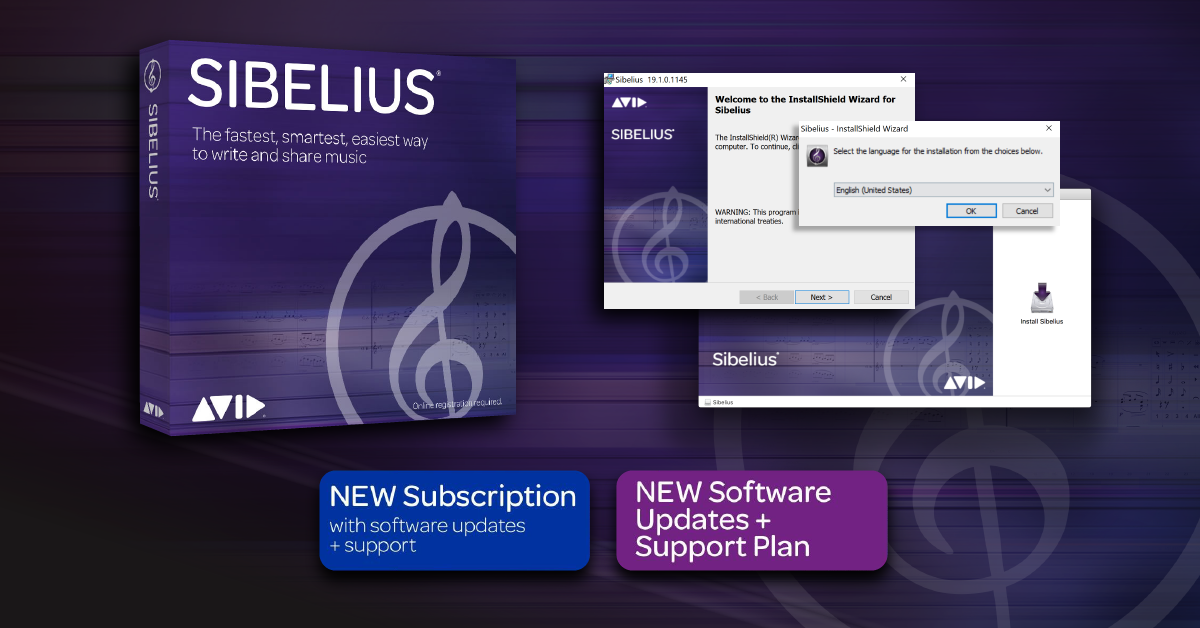
In this guide, we will show you how to register and install Avid’s Sibelius software. If you are renewing a current subscription, go to our Avid renewal instructions instead. Before installing, check that your computer meets the Sibelius version’s computer specification requirements and operating system compatibility. Follow the sections below to get started.
- Register Sibelius Activation Code
- Academic versions for students & teachers
- Download and install Sibelius
- Activate Sibelius with Avid Link
Register Sibelius Activation Code
You can register the Sibelius Activation Code with Avid after you create an Avid Master Account. If you already have an account, continue using the same account. You can always reset the login if you forget. Open the Software Activation Instructions email from your Sweetwater Sales Engineer to get your Activation Code. If you purchased a boxed copy, open the box and remove the card inside. Once registered with Avid, Sibelius and its download links will appear on the My Products and Subscriptions page of your Avid Master Account. Follow the steps below to register your Activation Code.
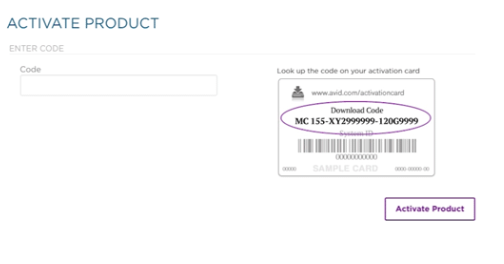
- Copy the Activation Code you received from your Sweetwater Sales Engineer and go to the Avid Activation page.
- Paste the code into the box and click Activate Product.
- Follow the on-screen instructions to activate Sibelius.
- Academic versions must continue to verify their eligibility with Identit-e.
Academic versions for students & teachers
Academic versions of Sibelius must be verified by Proxi.id before you can use your Sibeleus software. Once you’ve activated your software on Avid’s website, you will be prompted to enter your school credentials.
When Proxi.id has verified your eligibility, you will gain automatic access to your Sibelius software. Follow the renewal instructions if you purchased a student/teacher subscription renewal. Learn more about this topic on Avid’s eligibility page and eligibility FAQs.
- Register your Activation Code with Avid (above).
- When you have registered your Activation Code, you will be redirected to Proxi.id for eligibility verification.
- When prompted, click Start to begin the verification process.
- Enter the institution’s name and click on it once it appears.
- You will then be redirected to your institution’s SSO and prompted to enter your academic credentials. Once logged in, your educational license will then be validated.
- If you cannot find your institution as outlined in step four, if you have forgotten your institution-issued email address, or if you do not yet have an institution-issued email, please follow the instructions below.
If your institution doesn’t appear
IMPORTANT: You must enter the Proxi.id code within seven days! If you do not, you must repeat the following process again. You must submit proof of identification if the email domain does not exist.
If your institution doesn’t appear in the search, Proxi.id will send you a verification you must enter to proceed.
- When you’ve been redirected to Proxi.id (as outlined in step two above), click Can’t find your institution?, enter your academic email address, and then click Submit. You will then receive an email from Proxi.id with a verification code.
- Copy and paste the code you received, click Submit, then follow step five above to complete the validation process.
If your institution-issued email doesn’t exist or if you do not have an institution-issued email address
IMPORTANT: The verification will be processed in 24–48 hours (about two days).
If you are a new student/teacher and do not currently have institution-issued email credentials, or if the email domain does not exist, you must submit proof of eligibility.
- When you’ve been redirected to Proxi.id (as outlined in step two above), click Can’t find your institution?, then click click here to submit proof.
- Complete the eligibility form and make sure to enter your academic email address. If required, upload clear copies of any additional documentation (JPEG and PDF only!).
- Once the verification has been processed, you will receive an email from Proxy.id containing a verification code, along with a link to the verification page.
- After entering the verification code, you will be redirected to your institution’s SSO and prompted to enter your academic credentials. Once logged in, your educational license will be validated.
Download and install Sibelius
Once you have registered Sibelius with Avid, the downloads are found on the My Products and Subscriptions page. Download times will vary depending on the connection with your internet service provider. Try downloading one at a time for the quickest experience.
Sibelius Sounds library
Sibelius comes with a sound library for playing back your compositions. You can install them to your computer’s internal drive, or a dedicated external sound library drive. It’s 24GB, so the download and installation may take some time. Go to Avid’s Sibelius Sounds for PC and Mac pages for more information.
- Go to your My Products and Subscriptions page and locate your Sibelius product. Click Show to see all available product details and download links.
- Download the Sibelius Installer and Sibelius Sounds Library for your operating system.
- Open your Downloads folder and launch the installer files:
- PC: Right-click the Sibelius_2019.zip file and then click Extract. Double-click the new Install_Sibelius.exe file and follow the on-screen instructions.
- Mac: Double-click the Sibelius_2019.dmg. In the new window, double-click the Install Sibelius.pkg file and follow the on-screen instructions.
Activate Sibelius with Avid Link
IMPORTANT: When entering your license, Only enter the Activation ID. DO NOT include the System ID.
Now that you’ve installed Sibelius all that is left is to activate it with the Avid Link app. Install Avid Link, log in, and then activate Sibelius. Follow these steps:
- Download and install the Avid Link app.
- Launch Avid Link and click the Profile tab on the top left.
- Login using your AVID account credentials.
- Click Products.
- Click menu for Siblius and select License.
- Select your license and click Use License.
When you need help, Sweetwater has the answers!
Our knowledge base contains over 28,000 expertly written tech articles that will give you answers and help you get the most out of your gear. Our pro musicians and gear experts update content daily to keep you informed and on your way. Best of all, it’s totally FREE, and it’s just another reason that you get more at Sweetwater.com.

