

Alesis Strata Firmware Update Guide
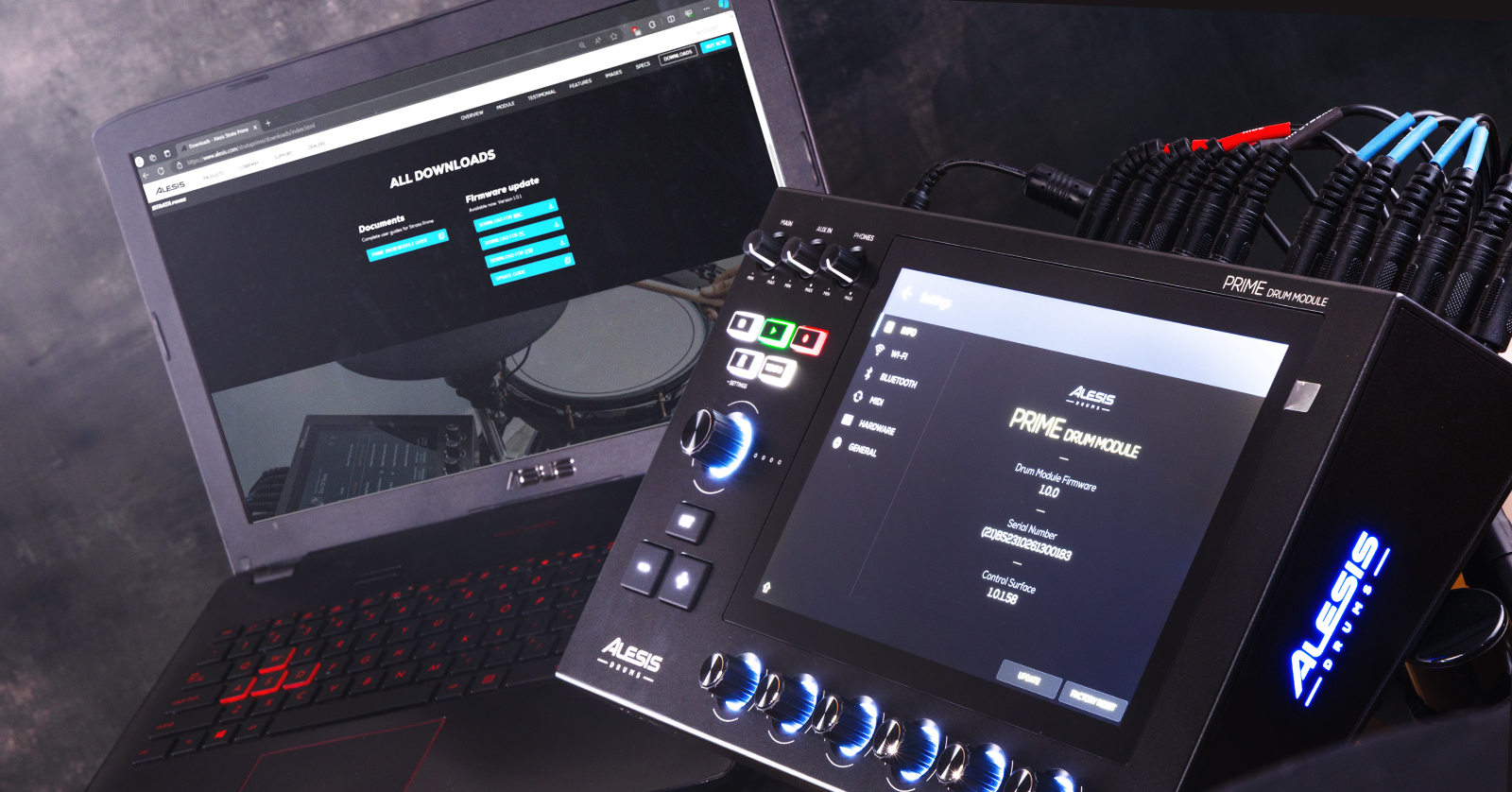
Alesis will periodically release Strata firmware updates that add new features and address bugs in the current version. This guide will show you how to update the firmware on your Alesis Strata electronic kit. Follow the instructions below to get started.
- Update Alesis Strata Prime Firmware via Wi-Fi
- Update Alesis Strata Prime Firmware via USB Thumb Drive
- Update Alesis Strata Prime Firmware via Computer
Update Alesis Strata Prime Firmware via Wi-Fi
NOTE: Verify that you have a strong Wi-Fi connection before updating the firmware. An unstable Wi-Fi connection can result in a failed firmware update.
One way to update your Alesis Strata Prime module’s firmware is by using Wi-Fi. This is useful if you don’t have a USB flash drive, an SD card, or a USB cable to connect to your computer.
- Power on the Strata Prime module, press Settings, and press WI-FI.
- Press ON at the top-righthand corner of the screen. Choose the network to which you want to connect.
- Enter the Wi-Fi password.
- Once connected to Wi-Fi, you may be prompted when an update is available without having to go to the Settings menu.
- Press the Info tab within the Settings menu. Choose Update.
- Select Online Update when prompted to choose an update method.
- On the next screen, press Update Now, then press Shut Down when prompted. This will reboot your Strata Prime module into Update Mode.
- Let the firmware update install. After it’s finished, the module will restart automatically.
Update Strata Prime Firmware via USB Thumb Drive
IMPORTANT: The SD card or USB thumb drive must be in the exFAT or FAT32 format!
You can also use a USB thumb drive to update the firmware.
- Format the USB thumb drive to exFAT or FAT32. Remember that formatting a storage device will erase all data currently stored on the drive, so be sure to back up any important files before formatting!
- Go to the Alesis Strata Prime download page. Click DOWNLOAD FOR USB.
- Navigate to your Downloads folder, then transfer the firmware file over to your USB drive. Make sure it’s in the root directory!
- Safely eject the drive from your computer. Connect the drive to the USB-A port.
- Power on the Strata Prime module, press Settings, and select Update at the bottom of the INFO tab.
- Select USB Drive Update when prompted to choose the update method.
- Press Upgrade and select Update. The module will then restart into Update Mode and will begin the firmware-update process.
- Once the process is complete, restart the module.
Update Strata Prime Firmware via Computer
IMPORTANT: Do not disconnect or power off the module or the computer during the firmware-update process. Doing so may brick the unit!
The preferred firmware-update method is to connect the module to your computer. This requires the use of the Strata Prime firmware-update application.
- Go to the Alesis Strata download page. Download the latest version of the Strata firmware-update application.
- Connect the Strata Prime module to your computer, then turn the module on.
- Press Settings, then select Update at the bottom of the INFO tab.
- Choose Switch to Update Mode when prompted to choose the update method. Once a method is selected, the module will restart, and the screen will show Update Mode.
- Go to your Downloads folder, then locate and launch the firmware updater application.
- When the update window appears, click Start Update. After the update is complete, the module’s screen will display Done, and the module will restart.
- Click Done in the firmware application to complete the firmware-update process.
Alesis Strata Prime | Updating the Module’s Firmware
Related Articles
When you need help, Sweetwater has the answers!
Our knowledge base contains over 28,000 expertly written tech articles that will give you answers and help you get the most out of your gear. Our pro musicians and gear experts update content daily to keep you informed and on your way. Best of all, it’s totally FREE, and it’s just another reason that you get more at Sweetwater.com.

