

Akai MPC Key 61 Firmware Update Guide
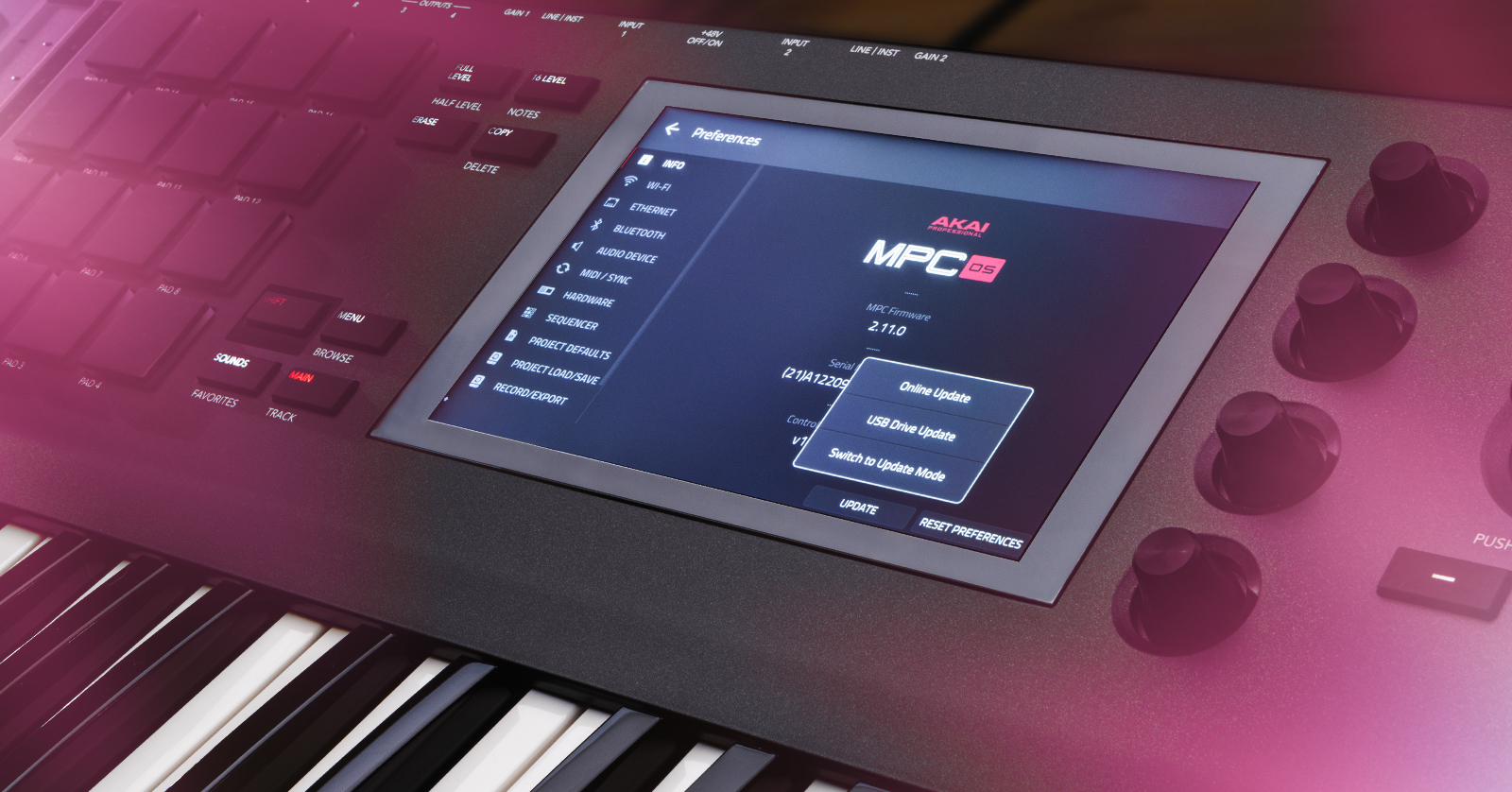
Akai will release firmware updates periodically for your MPK Key 61, which often include new features and address potential bugs in the current version. So, this guide will show you the three different methods to perform a firmware update to your MPC Key 61. Follow the instructions below to get started.
- Check Firmware Version
- Wireless Firmware Update
- Update Firmware from a Computer
- Update Firmware Using a USB Thumb Drive
Check Firmware Version
TIP: We highly recommend checking and updating the MPC firmware when you first take the workstation out of the box to ensure you’re running on the newest firmware right off the bat!
Before updating the firmware, it’s always good practice to check if the version that’s currently installed on the workstation matches the latest version listed on the website. If it does match, there’s no need to update the firmware.
- Go to the downloads section at the bottom of the MPC Key 61 product page and check the latest version. It should be listed as MPC 2.XX.X.
- On your MPC Key 61, press MENU, select PREFERENCES, then tap INFO. You’re good to go if the version matches the latest version on the website. If it doesn’t match, follow the instructions below to get up to date.
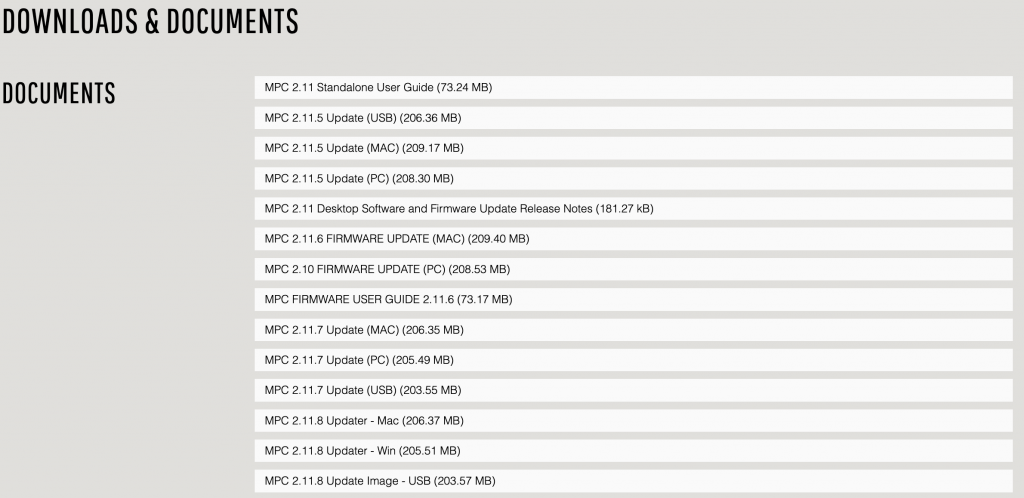
Click the image to download the Akai MPC Key 61 firmware
Wireless Firmware Update
IMPORTANT: You must have a stable Wi-Fi connection during the firmware process, or the firmware update will fail.
Your MPC Key 61 can connect to your local Wi-Fi network, making firmware updates simple. Wirelessly updating your firmware is the easiest method, as it’s just pressing a few buttons.
- If you aren’t already connected to your local Wi-Fi, Press MENU, select PREFERENCES, and tap WIFI.
- Select your Wi-Fi network and password (if applicable) and wait until it’s connected.
- Go back to the Preferences page, press INFO, then press UPDATE.
- Select Online Update. If there is a new version, you’ll be prompted to update.
- Press UPDATE NOW and select RESTART. The MPC Key 61 will then go through the firmware update process.
- Do not switch off or unplug the MPC Key during the firmware update!
- Once the update is complete, the workstation will reboot into normal operation mode.
Update Firmware from a Computer
Another way to update the firmware is by connecting your MPC Key 61 to your computer and then uploading the firmware file directly to the unit.
- On your MPC Key 61, go to the Preferences page, press INFO, then press UPDATE.
- Select Switch to Update Mode. Wait to press Update!
- Log into your inMusic account, click View Downloads, then download the latest firmware version for your OS (MAC) or (PC).
- Alternatively, go to the downloads section at the bottom of the MPC Key 61 product page and download the latest version for your OS.
- Navigate to your Downloads folder. Locate and double-click the firmware update software.
- Connect the MPC Key 61 to your computer.
- Only connect it to a USB hub, as the connection will often be unreliable, resulting in a failed update.
- Press Update on the MPC Key 61, launch the firmware software on your computer, then click Update.
Update Firmware Using a USB Thumb Drive
The last way to update the MPC Key 61 firmware is by using a USB thumb drive. If you use a USB thumb drive, make sure it’s formatted as exFAT or FAT32. If you aren’t sure how to format external drives on your computer, check out our PC and Mac guides to learn more!
- Log into your inMusic account, click View Downloads, then download the latest firmware version for the USB drive. It will be named MPC 2.xx.x (USB).
- Alternatively, go to the downloads section at the bottom of the MPC Key 61 product page and download the latest version for the USB thumb drive.
- Connect the USB thumb drive to your computer and format it to either exFAT or FAT32.
- Safely eject the thumb drive from your computer, then connect it to one of the USB ports on the rear of the unit.
- On the MPC Key 61, go to the Preferences page, press INFO, then press UPDATE.
- Formatting drives will erase any currently stored data, so be sure to back that data up before formatting.
- Select USB Drive Update, press UPDATE, then press UPDATE once more.
Related Articles
When you need help, Sweetwater has the answers!
Our knowledge base contains over 28,000 expertly written tech articles that will give you answers and help you get the most out of your gear. Our pro musicians and gear experts update content daily to keep you informed and on your way. Best of all, it’s totally FREE, and it’s just another reason that you get more at Sweetwater.com.

