

Roland TD-27 Firmware Update Guide
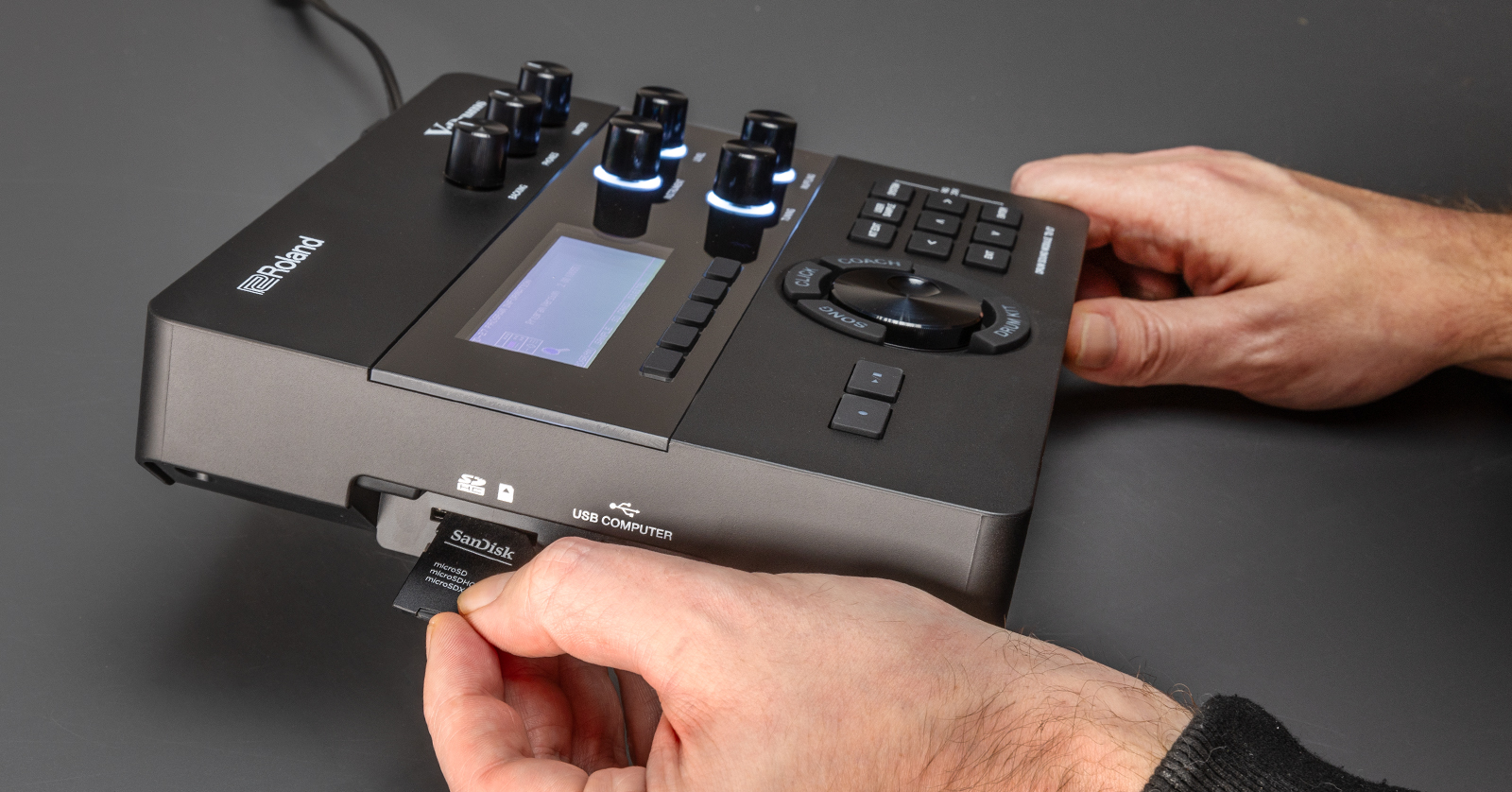
Roland will release firmware updates, which will often add new samples and features and address any bugs present in the current version. So, in this guide, we will show you how to update the firmware on your Roland TD-27 module. Follow the sections below to get started.
BEFORE WE BEGIN!
There are a few things you’ll need to update the TD-27 module’s software:
- SD card with up to 32GB of storage capacity
- Roland Cloud Manager
- SD card reader (if your computer doesn’t have an SD card slot)
Format the SD Card and Back Up User Data
Before updating the firmware, you must format the SD card so it can be recognized by the TD-27 module. You must also back up any custom presets or settings, as performing the update will erase all user data.
- Insert the SD card and turn on the module.
- Press the SYSTEM button, use the jog wheel to select SD CARD, then choose FORMAT.
- Press the FORMAT (5) button. Once you see Complete…., the SD card is successfully formatted, and you will be taken back to the main screen.
- Press the SYSTEM button, use the jog wheel to select SD CARD, then select SAVE. Make sure you check the With User Sample box!
- Press the EXECUTE (5) button to complete the backup.
- If you wish to name the backup file, then press the NAME (4) button, rename it, and then press the EXECUTE (5) button.
Download the Firmware File
Once you’ve formatted your SD card and backed up your user data, you must download and transfer the firmware file to the SD card using Roland Cloud Manager.
- Download and install Roland Cloud Manager.
- Launch the software and log in using your Roland account credentials you used during the registration process.
- Click Hardware, choose V-Drums at the top of the window, scroll down until you see TD-27v2, then click the Download button.
- Navigate to your Downloads folder, extract the firmware file, and insert the SD card into your computer (or SD card reader).
- Copy and paste only the UBA.BIN file from the folder over to the root directory of your SD card.
- Do not transfer the entire folder or the PDF!
- Once complete, remove the SD card from your computer (or SD card reader).
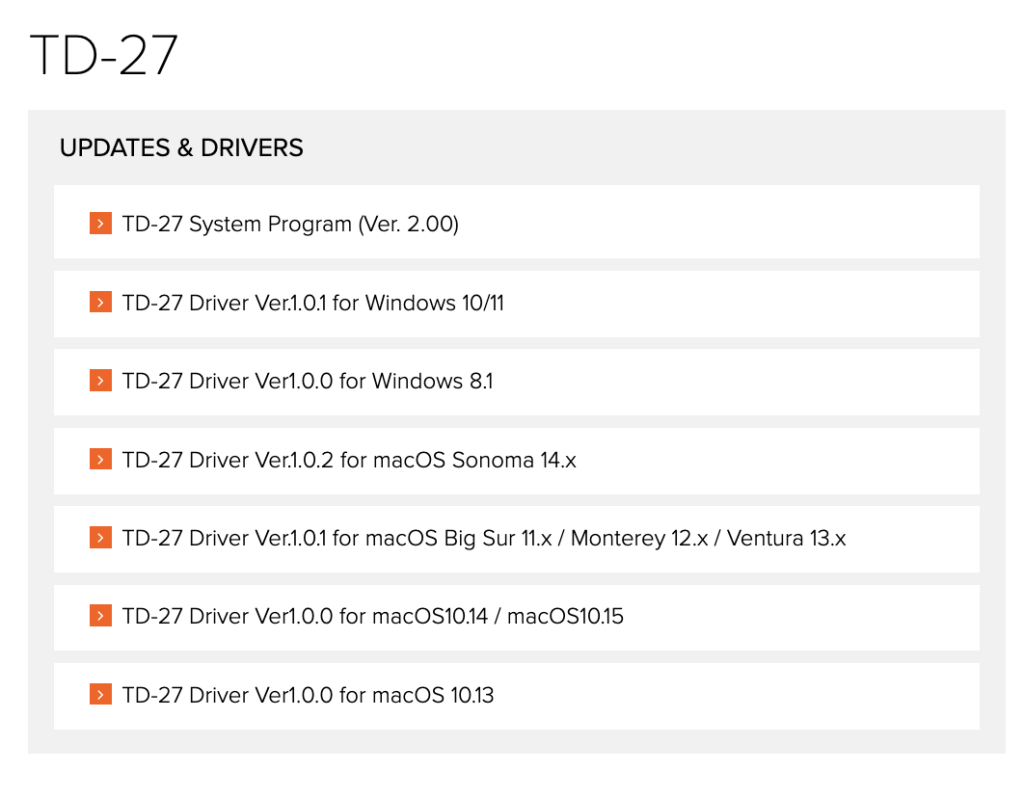
Click the image to download the TD-27 firmware.
Update the TD-27 Firmware
IMPORTANT: The firmware update will take approximately 5–10 minutes. Make sure you don’t disconnect or power down the module during that time, as it may cause the module to malfunction!
Now that you have the firmware file on your SD card, it’s time to update the TD-27KV2 firmware.
- Insert the SD card into the module, press and hold the RECORD button, and turn on the module. Let go of the button once you see the update screen appear.
- Press the RECORD button to begin the firmware update process. Once the update process is complete, turn off the module then turn it back on.
- Press the FACTORY RESET (5) button when prompted then select OK. The firmware update process is now complete.
When you need help, Sweetwater has the answers!
Our knowledge base contains over 28,000 expertly written tech articles that will give you answers and help you get the most out of your gear. Our pro musicians and gear experts update content daily to keep you informed and on your way. Best of all, it’s totally FREE, and it’s just another reason that you get more at Sweetwater.com.

