

Roland GO:KEYS 3 and GO:KEYS 5 Firmware Update Guide
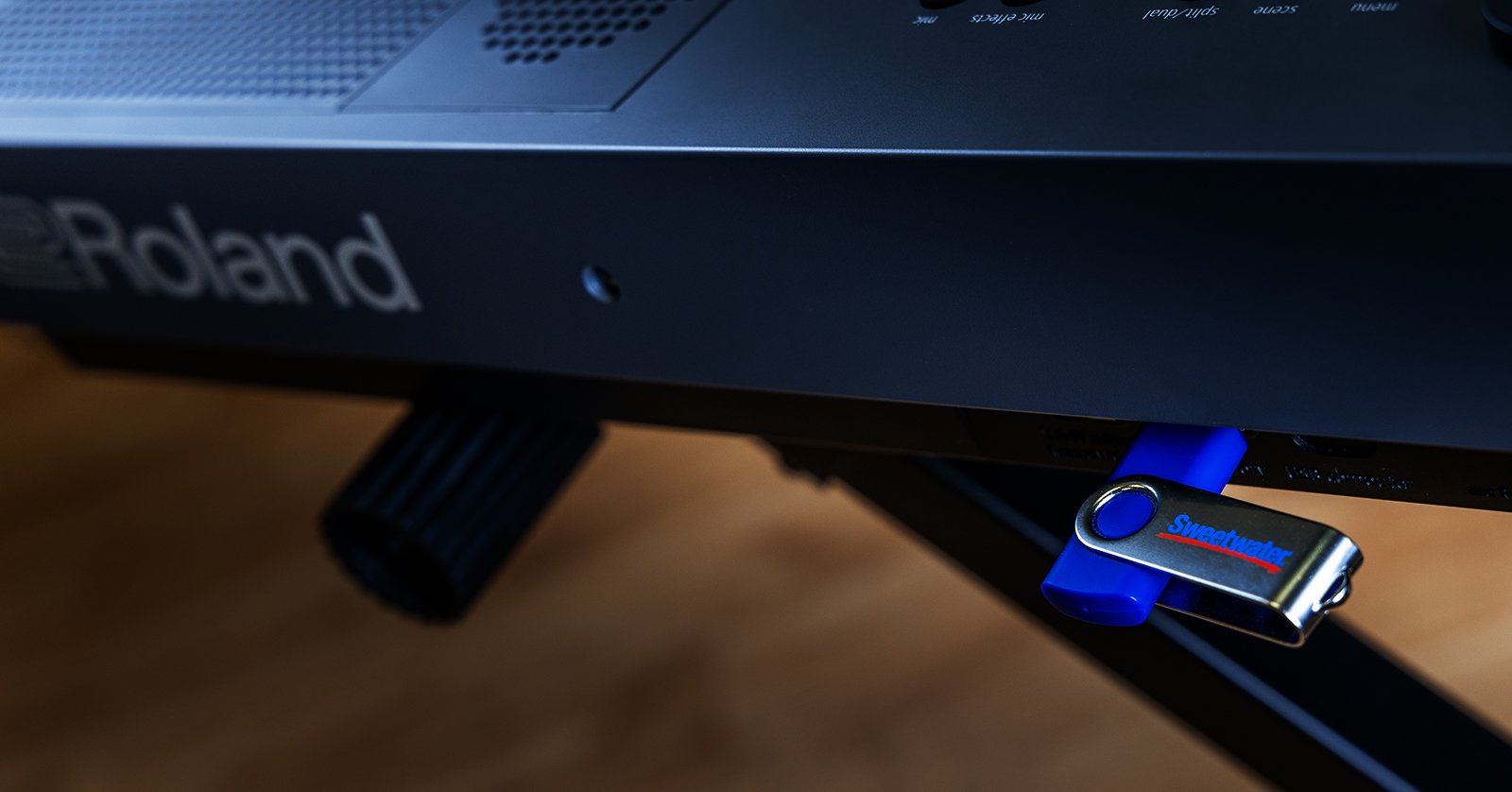
From time to time, Roland will provide new firmware for your GO:KEYS that will fix bugs and may provide new features and sounds. Roland refers to their firmware as the system program.
- Overview of the Roland GO:KEYS 3 and GO:KEYS 5 Firmware Update Process
- Check to See If You Need to Update the Firmware
- Procedure for Updating the Firmware
Overview of the Roland GO:KEYS 3 and GO:KEYS 5 Firmware Update Process
To upgrade your GO:KEYS 3 or 5 to the newest version of its system program, you need two USB flash drives which you format on the GO:KEYS.
The first flash drive is for making a backup copy of all the tones, styles, and programming that you have made on your instrument. The second flash drive is for installing the new system program.
After you back up your data with the first flash drive, connect the second flash drive to your Mac or your Windows PC. On your computer, go to Roland’s Downloads page for the GO:KEYS 3 and GO:KEYS 5, then download Roland’s system program update file. On your computer, copy the system program update file to your USB flash drive.
Connect the USB flash drive to your GO:KEYS, then perform the update.
If necessary, you can then restore your saved data from the first flash drive back to the GO:KEYS.
Let’s go through the steps in detail.
Check to See If You Need to Update the Firmware
How to Find the Version Number of the System Program on Your GO:KEYS 3 or 5
- Press the Menu button.
- Use the Right button to scroll to Information. Press the Enter button. The version number is displayed. Take note of it.
- Press the Exit button.
How to Find the Version Number of the Newest System Program Update
On your computer, go to the Roland GO:KEYS 3 and Roland GO:KEYS 5 Downloads page.
Under Updates & Drivers, you will see the newest system program version. If the number is higher than the version currently on your GO:KEYS 3 or 5, you need to perform the update. If it’s not a higher number, you are done.
Procedure for Updating the Firmware
Back Up Your Data to a USB Flash Drive
Use the first of your two USB flash drives to back up your user data before you perform the update. If a problem occurs, you will be able to restore your data from the backup. Follow the instructions in the GO:KEYS 5 / GO:KEYS 3 Reference Manual > Convenient functions (Utility) > Backing up settings to a USB flash drive (Backup).
After you have backed up your data, set this USB flash drive aside. Get your second USB flash drive.
Format a Second USB Flash Drive on Your GO:KEYS
Before you format your second USB flash drive, make sure that it does not have any data on it, as the formatting procedure will erase everything on a flash drive.
- On the GO:KEYS, connect a USB-A flash drive to the USB memory port.
- Press the Menu button.
- Press the Left or Right button to scroll to Utility. Press the Enter button.
- You will see a Confirmation dialog asking if you are sure you want to format the USB drive. Use the Right key to select OK, then press Enter.
- Wait for the formatting to complete, then disconnect the USB flash drive from the GO:KEYS.
- Press the Home button to return to the main menu.
Learn more in the GO:KEYS 5 / GO:KEYS 3 Reference Manual > Convenient functions (Utility) > Formatting a USB flash drive (Format).
Download the Correct Roland System Program Update
- On your computer, go to the Roland GO:KEYS 3 and Roland GO:KEYS 5 Downloads page. Under Updates & Drivers, click on the link for the new version. This will take you to the Roland support page with detailed instructions. Please review them. Now scroll down to the bottom of the page, click I Agree and Wish to Proceed with Download, and click Download File.
- The file will download to your computer. It will be in compressed .zip format. Locate the file.
- If necessary, extract the download. The result is a folder named “gokeys_sys_v104” or similar. Inside this folder is a document named “RO84_UPA.BIN” or similar.
- Connect the second USB-A flash drive, the one you formatted in the previous step, to your computer.
- Copy the RO84_UPA.BIN file to the root of your USB flash drive. Do not copy the enclosing folder — copy only the file ending in .BIN itself.
- Perform the Eject procedure on macOS or Windows so you can safely disconnect the USB flash drive.
Perform the Update on the GO:KEYS
IMPORTANT: When you are ready to update the firmware, make sure your GO:KEYS has a fully charged, fresh set of batteries, or better yet use the Roland PSB-5U 12V DC power supply (sold separately). Do not turn off the power to your GO:KEYS while the update is in progress. If the unit loses power in the middle of the update, it will result in the unit being inoperable, which will require sending your unit to a Roland service center for repair.
- With the power shut down on the GO:KEYS, connect the USB flash drive with the system program update file to the USB memory port.
- On the GO:KEYS 5, hold down the Mic button and turn on the power to the unit. On the GO:KEYS 3, hold down the Bluetooth button and turn on the power to the unit.
- The message “===update===” will appear on the display, and the update operation will begin.
- Wait patiently until the message “=update finished.= ” appears. This will take five minutes or longer.
- When the operation is complete, press and hold the power button to turn off the power.
- Detach the USB flash drive from the instrument.
- Power the unit back on. The update is complete.
Restore Your Data
If something goes wrong, your data is safe if you have made the backup on the first USB flash drive. If you need to restore it, follow the instructions in the GO:KEYS 5 / GO:KEYS 3 Reference Manual > Convenient functions (utility) > Loading a backup file into this instrument (Restore).
Related Articles
When you need help, Sweetwater has the answers!
Our knowledge base contains over 28,000 expertly written tech articles that will give you answers and help you get the most out of your gear. Our pro musicians and gear experts update content daily to keep you informed and on your way. Best of all, it’s totally FREE, and it’s just another reason that you get more at Sweetwater.com.

