

Nord Stage Piano Operating System Update
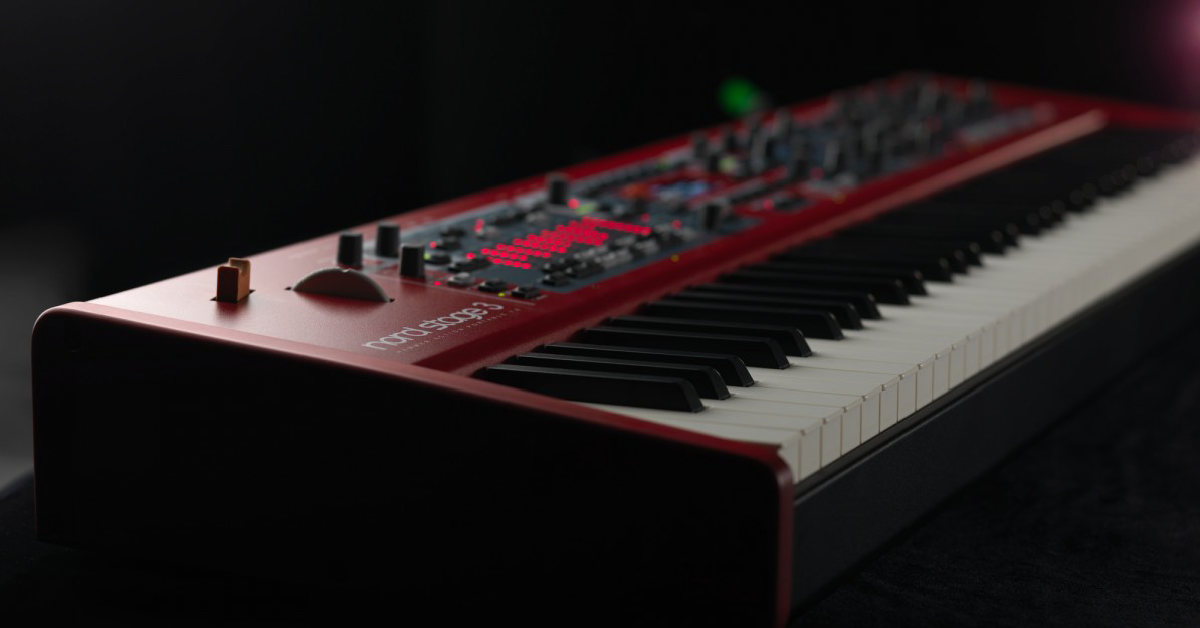
In this guide, we will show you how to update the operating system (firmware) on the Nord Stage, Nord Organ, Nord Piano, Nord Electro, Nord Grand, Nord Wave, and Nord Lead. You will learn how to back up your sounds and then update the firmware with the Nord Sounds Manager app. Follow each of the sections below to get started.
Back up your Nord sounds
Restoring the factory sounds will delete all sounds currently loaded on your Nord instrument. Use the Nord Sound Manager to create a backup of all your sounds before performing the restoration. Skip this section if you do not want to keep any of your current sounds.
- Go to the Nord Sound Manager page and download the latest version for your computer.
- Windows PC users must also download and install the Clavia USB driver.
- Open your Downloads folder and install the app:
- PC: Right-click the Nord Sound Manager .zip file, select Extract all…, and then click Extract. Double-click the new Nord Sound Manager .exe file and follow the on-screen instructions.
- Mac: Double-click the Nord Sound Manager .dmg file. In the new window, drag the Nord Sound Manager app to the Applications shortcut.
- Connect your Nord instrument to the computer via USB and launch the Nord Sound Manager.
- Click the Backup icon (top-right).
Update Nord operating system
Operating system updates that optimize performance and add new features are available for your Nord instrument. Nord always recommends using the latest version of the Nord Sound Manager app and your Nord instrument’s operating system. You may want to back up your current Nord sounds as a precaution and safe practice.
If your Nord does not start
If your Nord instrument does not start up, you must power it on while holding the Shift and Store buttons at the same time. This forces the instrument into an update mode so that the update utility can connect and reload the operating system.
- Check your Nord’s current version by powering it on and watching the screen.
- Close all apps and connect your Nord instrument to the computer via USB.
- Go to the Nord Downloads page, select your instrument, and download the OS Update file.
- Windows PC users must also download and install the Clavia USB driver.
- Open your Downloads folder and launch the updater app:
- PC: Right-click the Update Nord .zip file, select Extract all…, and then click Extract. Double-click the new Update Nord .exe file and follow the on-screen instructions.
- Mac: Double-click the Update Nord .dmg file and then the Update Nord app.
- Your Nord instrument’s OS version will appear once connected with the utility.
- Click Update to being and do not turn off the Nord instrument or disconnect it from the computer. Your Nord will restart during this process.
- Once complete, click the done button.
When you need help, Sweetwater has the answers!
Our knowledge base contains over 28,000 expertly written tech articles that will give you answers and help you get the most out of your gear. Our pro musicians and gear experts update content daily to keep you informed and on your way. Best of all, it’s totally FREE, and it’s just another reason that you get more at Sweetwater.com.

