

How to Update the Firmware on the Strike Multipad
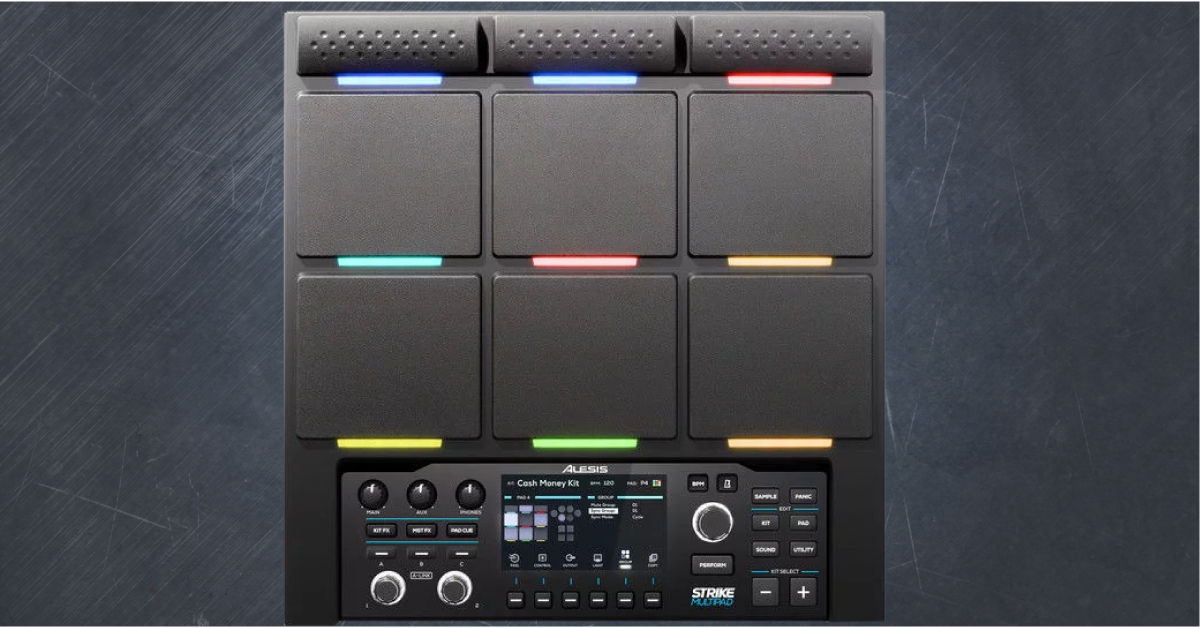
Alesis Strike Multipad firmware update instructions
In this guide, we will show you how to update the firmware on an Alesis Strike Multipad. These updates are released periodically and will often add new features and optimizations on the devices internal software. Follow the sections below to get started.
- Check the Strike Multipad firmware version
- Download the Strike Multipad firmware
- Install the firmware update on a Strike Multipad
Check the Strike Multipad firmware version
Before downloading and installing the firmware on your device, the first thing to do is to check which version you’re running, and also the latest version of the website.
- Power on the device. The firmware version will be listed on the Loading screen.
- You can also view the version number by pressing the Utility button, then pressing the F5 button below the display to view the system settings.
- Go to the Strike Multipad download page and see the latest Feature Update which is listed.
Download the Strike Multipad firmware
IMPORTANT: The USB thumb drive must be formatted to FAT32 before transferring the file to it. Learn more about how to format external drives on Mac and PC.
- Go to the Strike Multipad download page and download Feature Update v1.x.
- Connect a USB thumb drive to your computer and format it to FAT32.
- The thumb drive will not be recognized by your hardware if it’s formatted as any other type.
- Navigate to your Downloads folder, extract the .DAT file, and copy it to the root directory of the thumb drive.
Click here to download the latest firmware update.
Install the firmware on a Strike Multipad
The final step is to perform the firmware update. The update takes a few minutes to complete, so be patient and make sure not to remove the USB flash drive while the update is in progress. Follow these steps to complete the firmware update.
- With the Strike Multipad turned off, connect the flash drive into the USB MEMORY port.
- Press and hold the BPM and Metronome buttons located above the main encoder, and turn the unit on.
- When the blue Firmware screen appears, let go of the buttons, and press the main encoder to start the firmware update.
- Once the firmware update is completed, turn the device off, disconnect the USB thumb drive, and then turn the unit back on.
When you need help, Sweetwater has the answers!
Our knowledge base contains over 28,000 expertly written tech articles that will give you answers and help you get the most out of your gear. Our pro musicians and gear experts update content daily to keep you informed and on your way. Best of all, it’s totally FREE, and it’s just another reason that you get more at Sweetwater.com.

