

How to Pair AirPods
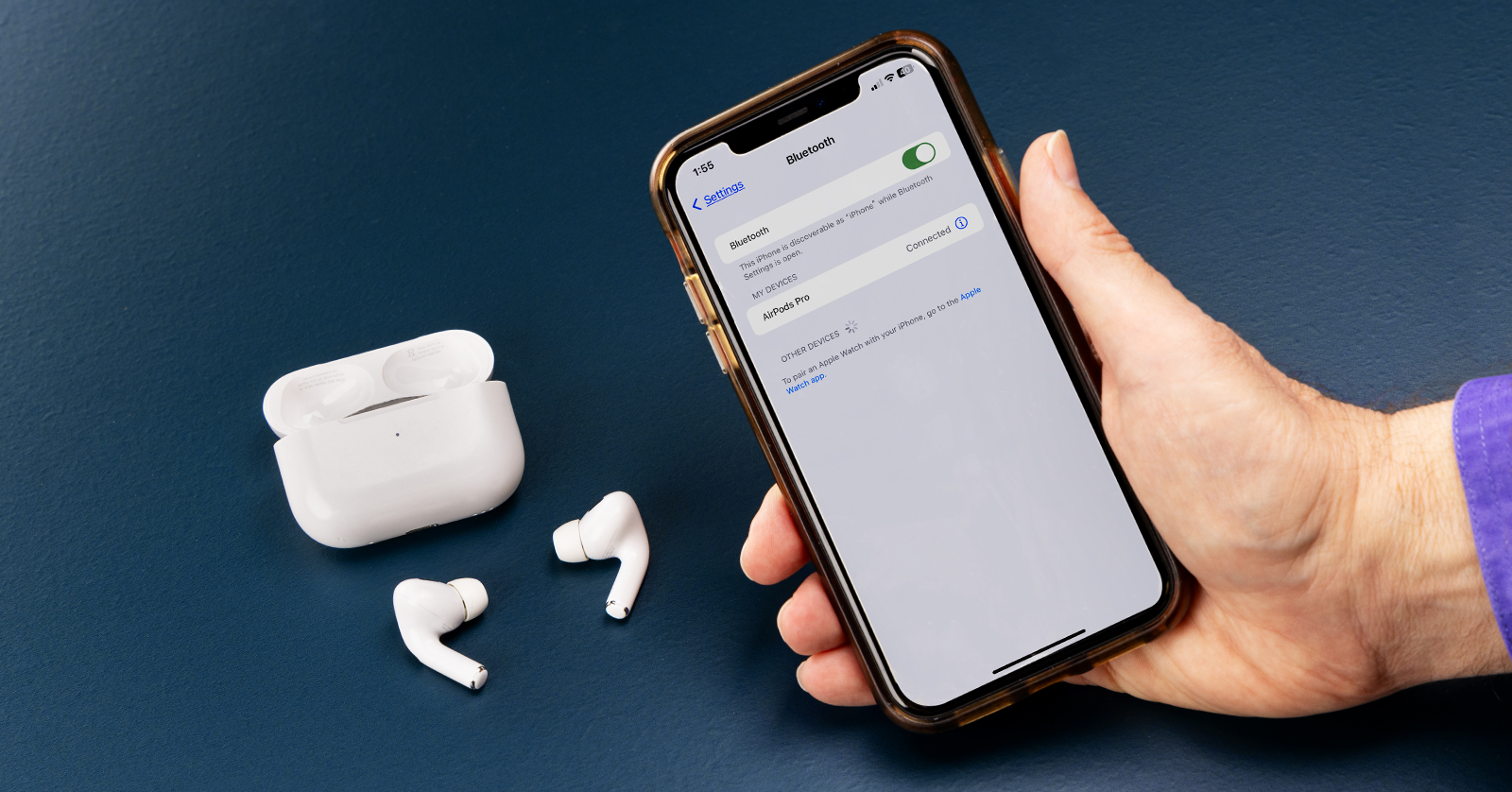
AirPods are some of the most popular earbuds on the market. From their Spatial Audio with head tracking feature to their high-quality sound, you see them everywhere for plenty of reasons! In this guide, we will show you how to connect AirPods to your Mac, iPhone, Macbook, and almost all other devices! Let’s get started.
- How to Connect AirPods to an iPhone
- How to Connect AirPods to Mac
- Connecting AirPods to Android Devices
- How to Reset AirPods
How to Connect AirPods to an iPhone
Pairing your AirPods to an iPhone is straightforward. If you’re running a newer iOS version (iOS 10 or above) and Bluetooth is enabled, pairing AirPods to an iPhone couldn’t be easier.
NOTE: AirPods should connect automatically to any compatible iOS device that you’re signed in to with your Apple ID.
- Press the Settings icon on your iPhone’s home screen, choose Bluetooth, and toggle it to turn on.
- Depending on the AirPod model, do the following, then follow the on-screen instructions.
- AirPods (1st–3rd Gen) and AirPods Pro: Open the AirPod charging case with the AirPods still inside. Hold it next to your iPhone.
- AirPods Max: Take the AirPods out of their charging case. Hold them near your iPhone.
- Press Done.
- AirPods Max: Return to the Bluetooth settings. Select AirPods Max if a prompt doesn’t appear when holding them near your iPhone. Press and hold the Noise Control button if the White Status LED doesn’t flash.
How to Connect AirPods to a Mac
Connecting your AirPods to a Mac is similar to pairing them to an iPhone. You’re good to go as long as you enable Bluetooth on your Mac.
- Open your AirPods case with the AirPods still inside.
- Press and hold the button on the back of the case until the white LED begins flashing. This indicates that your AirPods are in pairing mode.
- AirPod Max users: Press and hold the Noise Cancel Control button until the white LED begins flashing.
- On your Mac, navigate to the Apple menu, select Systems Settings, navigate to Bluetooth, and toggle it on.
- Locate the AirPods in the list of available devices. Click Connect.
My AirPods Aren’t Pairing on iPhone or Mac
IMPORTANT! Before you go further, make sure your AirPods and your AirPod case are charged!
If your AirPods aren’t connecting to your iPhone after following the instructions above, you may need to connect them manually.
iPhone and iPad
- Open the charging case with the AirPods still inside.
- Press and hold the button on the back of the case until the white LED begins flashing. This indicates that your AirPods are in pairing mode.
- Navigate to your Bluetooth settings, scan for available Bluetooth devices, and connect your AirPods.
- If you still have issues, visit Apple’s support page for more information.
Mac
- Open your charging case with the AirPods still inside. (Make sure they’re charging!)
- Check that Bluetooth is turned ON.
- If your AirPods are connected, ensure they’re set as the primary playback device.
- If they aren’t connecting, remove them as a Bluetooth device (click X), close the charging case for 15 seconds, then open the lid.
- Press and hold the case’s Setup button for 10 seconds or until you see the status light flashing white. This means they are in pairing mode.
- Hold the case close to your Mac, open the case with the AirPods still inside, and follow the on-screen instructions.
How to Pair AirPods to Android Devices
NOTE: Some AirPod features will not be available on Android devices.
Android detects AirPods as a standard Bluetooth device. So just:
- Unlock your Android device, swipe down, and press the Bluetooth icon to turn it on.
- Press and hold the Bluetooth icon to open the Bluetooth settings.
- Press Pair new device.
- Open the AirPod case, then press and hold the Setup button for five seconds, until the LED starts flashing white. This means your AirPods are in pairing mode.
- AirPod Max: Press and hold the Noise Cancel Control button until the white LED begins flashing.
- Once your AirPods appear as an available Bluetooth device, select it. Follow the instructions.
- If your AirPods aren’t showing up, turn Bluetooth off and on again.
Connecting AirPods to PC
IMPORTANT! Make sure you fully charge your AirPods before pairing them to a PC!
Like Android devices, Windows PCs treat AirPods as generic Bluetooth devices. Unlike iOS and Mac OS devices, your AirPods won’t pair automatically. Thankfully, Microsoft has made it easy to pair AirPods to your PC.
- Open your AirPods case with the AirPods still inside.
- Press and hold the button on the back of the case until the White LED begins flashing. This indicates that your AirPods are in pairing mode.
- AirPod Max users: Press and hold the Noise Cancel Control button until the white LED begins flashing.
- Open the Start menu (Windowsicon). Select Settings.
- Select Bluetooth. Toggle it On.
- In the Add a device window that opens, Click Add device and select Bluetooth.
- Select your AirPods once your Windows PC discovers them. You should receive a notification that says, “Your device is ready to go!”
- Click Done to complete the process.
I Don’t Hear Any Audio!
If you don’t hear any audio coming out of your AirPods once they are connected to your PC, it is likely because they aren’t set as the default Playback device. Follow these instructions to learn how to set your AirPods as the default Playback deice.
Windows 10:
- Right-click the Speaker icon on the bottom right of the toolbar, then select Open Sound settings.
- Use the Output dropdown. Select your AirPods as the default Playback device.
Windows 11:
- Click the Speaker icon at the bottom right of the toolbar.
- Click the Speaker icon on the right side of the pop-up, then select your AirPods as your default Playback device.
How to Reset AirPods
NOTE: When you reset your AirPods on an iOS device or a Mac, all AirPod settings will also be reset.
If your AirPods aren’t showing up on any device, be it iPhone, Mac, Windows PC, or Android, you may need to reset your AirPods.
- Put the AirPods into the charging case, making sure the lid is closed, and wait for at least 30 seconds.
- Open the case and remove your AirPods.
- Go to your device’s Bluetooth settings and forget your AirPods.
- If your AirPods aren’t being displayed, continue to the next step.
- Put your AirPods back in the charging case, leaving the case open.
- Press and hold the Setup button until the status light in the case flashes amber and white.
- Follow the pairing procedure for your device outlined above.
When you need help, Sweetwater has the answers!
Our knowledge base contains over 28,000 expertly written tech articles that will give you answers and help you get the most out of your gear. Our pro musicians and gear experts update content daily to keep you informed and on your way. Best of all, it’s totally FREE, and it’s just another reason that you get more at Sweetwater.com.

