
FabFilter Software Activation Instructions

Sweetwater is dedicated to ensuring you have the best software purchasing experience possible. That’s why we’ve created the guide below that will take you from activating to launching your FabFilter software. Follow the steps below to get started.
- Activate FabFilter Software
- Download and Install FabFilter Plug-ins
- Launch DAW and Enter FabFilter License Code
Activate FabFilter Software
To get your FabFilter plug-in(s), you must first register your Activation Code with FabFilter. Find your Activation Code and follow the steps below to activate your software. Once done, scroll down to download and install your plug-ins.
Enter FabFilter Activation Code
IMPORTANT: Be sure to enter and confirm you have entered the correct email both email fields within the Activate section of the product activation page.
- Go to the FabFilter product activation page and complete the Activate prompt:
- If you already have an account, use the same email address registered with FabFilter. Log in to your account to double-check.
- If this is your first FabFilter purchase, add your contact details before clicking Activate.
- Open the Software Activation Instructions email you received from your Sweetwater Sales Engineer and enter each section of the Activation Code into the prompt.
- Complete the rest of the form and click Activate.
- If you’re a new FabFilter customer, you will receive an email to verify your account.
- In a separate email, you will receive the License Key you will need to authorize your plug-in. Be patient as It may take a few minutes for the email.
- If you don’t receive one of the emails, check your spam folder!
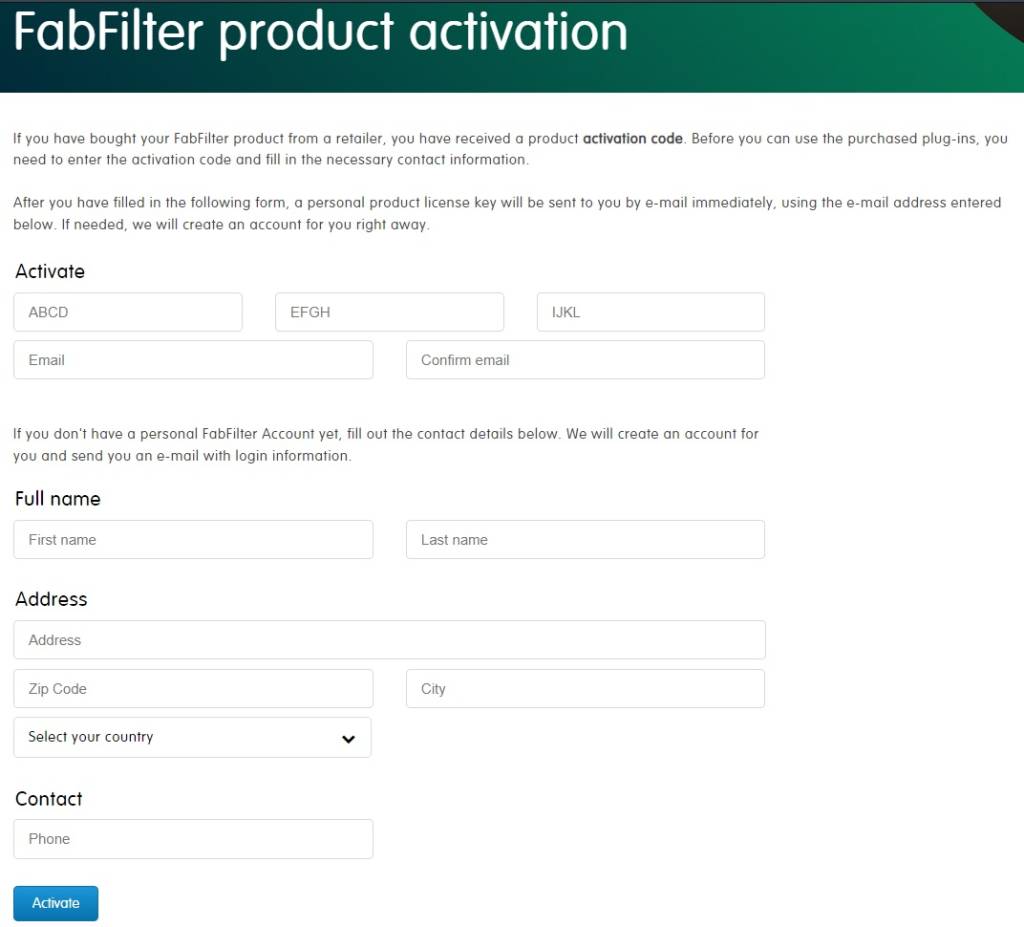
Click the image to activate your FabFilter product.
Download and Install FabFilter Plug-ins
Once activated, you must go to the downloads page to get your FabFilter plug-in(s). Follow the steps below to download and install your software. Once done, use the License Code to authorize your FabFilter software (further below).
Download and Launch Plug-in Installer
- Navigate to the FabFilter download page and download your software for PC or Mac.
- When the download finishes, open your Downloads folder and launch the FabFilter .exe or .dmg installer file.
- Mac users will also need to click the .pkg installer file in the window that appears.
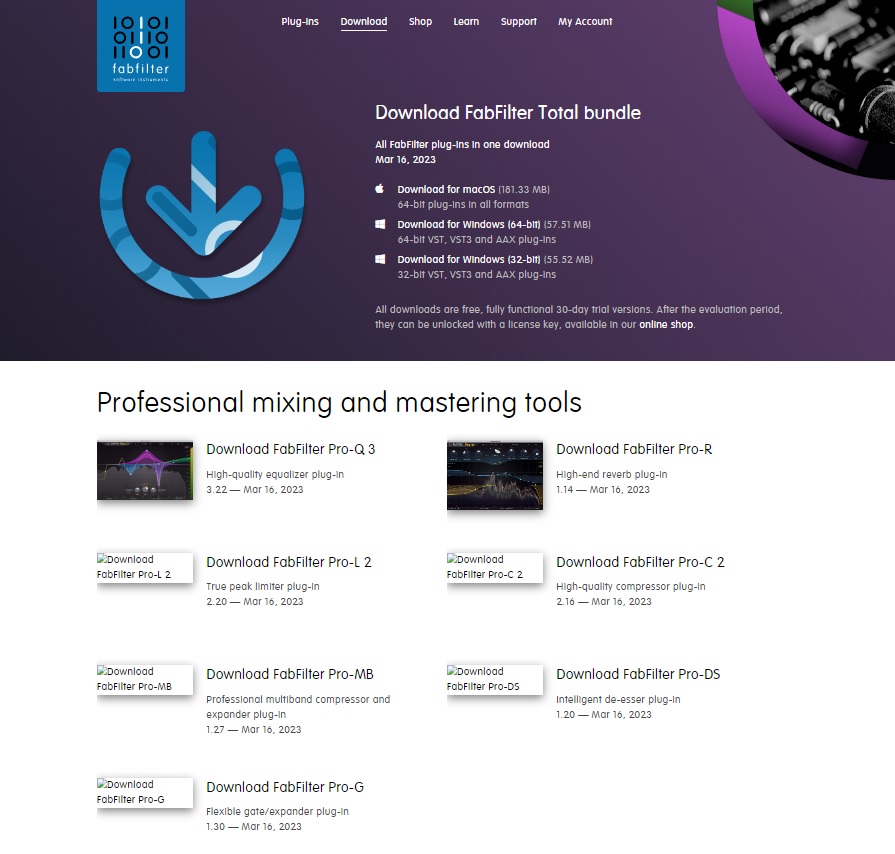
Click the image to download your FabFilter plug-in.
Launch DAW and Enter FabFilter License Key
Now that your FabFilter software is installed, you only need to launch your DAW, load it on a track, and enter the License key. Follow the steps below to license and use your FabFilter plug-in(s).
Enter FabFilter License Key
- Launch your favorite DAW, insert your FabFilter plug-in to an audio track, then click Enter License.
- Open the email you received from FabFilter, then copy and paste the entire key into the plug-in.
- Your plug-in License Key can also be found on your FabFilter account page by clicking View License Key located next to your newly activated plug-in.
- Click OK and relaunch your DAW.
When you need help, Sweetwater has the answers!
Our knowledge base contains over 28,000 expertly written tech articles that will give you answers and help you get the most out of your gear. Our pro musicians and gear experts update content daily to keep you informed and on your way. Best of all, it’s totally FREE, and it’s just another reason that you get more at Sweetwater.com.

