

BOSS ME-90 Firmware Update
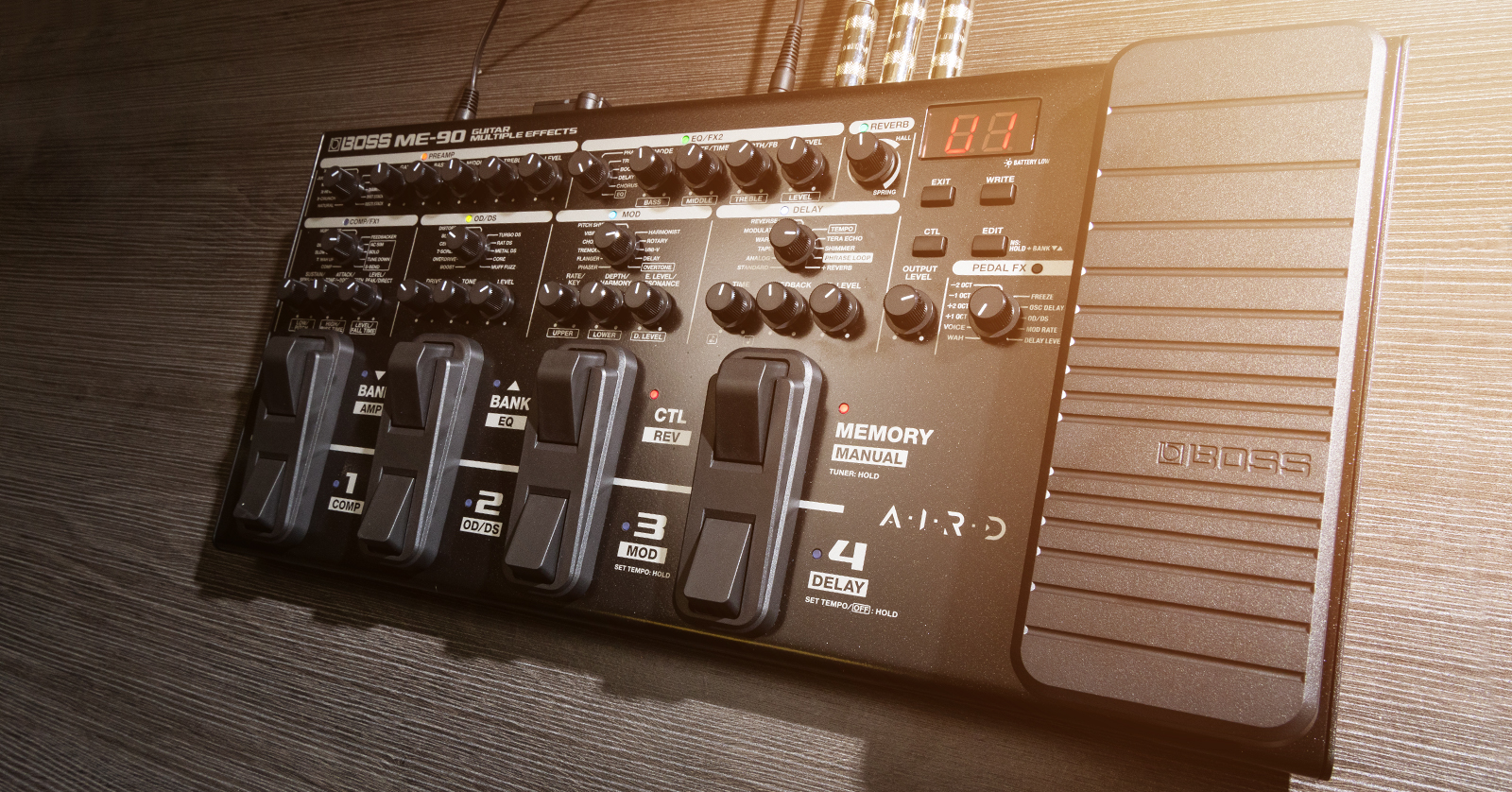
From time to time, BOSS will release a new version of the ME-90 firmware in order to fix bugs and add additional features. BOSS refers to the firmware as the System Program.
The firmware version works in tandem with the version of the BOSS Tone Studio app for macOS and Windows PC. If you install the newest version of the BOSS Tone Studio app and it cannot recognize your ME-90, it is likely that you need to update the firmware on the ME-90.
- Check to See If You Need to Update the Firmware
- Overview of the ME-90 Firmware Update Process
- Procedure for Updating the Firmware
Check to See If You Need to Update the Firmware
How to Find the Version Number of the System Program on Your ME-90
On your ME-90, turn the power off.
- Turn the Output Level knob all the way down.
- Hold down the Write button while you push the Power switch.
- The two-character LED display will show a number. For example, “03” means that your ME-90 is running System Version 1.03. Take note of this number.
How to Find the Version Number of the Newest ME-90 System Program Update
On your computer, go to the BOSS ME-90 Downloads page and find the newest ME-90 System Program file, such as “ME-90 System Program (ver.1.03).”
If the version number of the System Program file on the website is higher than the version number on your ME-90, then you need to update the firmware.
Overview of the ME-90 Firmware Update Process
To upgrade the ME-90 to the newest version of its System Program, you connect your ME-90 to your computer using a USB-C data cable. The ME-90 will create a virtual volume on the desktop of your Mac or your Windows PC that looks like an external drive.
From the BOSS website, download the appropriate ME-90 System Program update package to your computer.
From the installer package, copy the System Program update file to this BOSS virtual drive volume. This uploads the system program updater to the memory of the ME-90 over the USB cable.
Then, on the ME-90, you start the upgrade process. The ME-90 will notify you when it is complete.
The newest updates and drivers can be found on the ME-90 Downloads page.
Procedure for Updating the Firmware
Download and Install the BOSS Driver on Your Computer
We explained this in a previous step. On your computer, go to the BOSS ME-90 Downloads page and download the newest ME-90 Driver for your version of macOS or Windows. Double-click the downloaded driver and follow the instructions to complete the installation.
Download the System Program Updater
- Go back to the ME-90 Downloads page, under Updates & Drivers. Click on the System Program Updater. This will take you to a BOSS page with detailed instructions. Please review them. Now scroll down to the bottom of the page, click I agree and wish to proceed with download, and click the Download File button.
- The file will download to your computer. It will be in compressed .zip format. Locate the file.
- If necessary, extract it. The result is a folder named in the form me90_sys_vXXX, depending on the version number. Inside the folder are two files, ME-90.BIN and ROMINFO.TXT. Do not rename these files. They are the files you will upload to the ME-90 in the subsequent steps.
Connect the ME-90 to Your Computer
- With the ME-90’s power turned off, hold down the Exit and Write buttons with one hand while you turn on the Power switch with your other hand. The message UP will appear on the display, and the LED tuning guide light will blink slowly.
- Connect the ME-90 to the computer with your USB cable. An ME-90 drive icon will appear in My Programs on Windows or in the Finder on macOS.
- Copy both files from the update folder, ME-90.BIN and ROMINFO.TXT, to the root of the ME-90 drive. Copy the files themselves; do not copy the folder that contains the files.
- Perform the Eject command on your Mac or PC to safely dismount the ME-90 drive. On Windows, right-click on the ME-90 icon and choose Eject. On macOS, you can command-click or right-click on the ME-90 icon and choose Eject.
Perform the Update
IMPORTANT! Do not disconnect or turn off the power to your ME-90 while the update is in progress. You could “brick” your unit, requiring you to send it to BOSS for non-warranty repair.
Disconnect the USB cable from the ME-90. The update procedure will begin automatically. The LED tuning light will blink rapidly.
When the update is complete, the message OK appears on the display.
Once you see the message OK, you can turn off the power.
To verify that the System Program has been updated:
- Turn the Output Level knob all the way down.
- Hold down the Write button while you push the Power switch.
- The two-character LED display will show the version number.
Now that you have completed the update, head back to Sweetwater’s ME-90 Quickstart Guide to get set up with the BOSS Tone Studio and enjoy all those tones.
When you need help, Sweetwater has the answers!
Our knowledge base contains over 28,000 expertly written tech articles that will give you answers and help you get the most out of your gear. Our pro musicians and gear experts update content daily to keep you informed and on your way. Best of all, it’s totally FREE, and it’s just another reason that you get more at Sweetwater.com.


