

How do I activate and authorize my Rob Papen software?

In this guide, we will show you how to register and install your new Rob Papen software. Follow the sections below to get started.
Register the software
To begin, you’ll first need to create an account and register with Rob Papen. If you have already made the accounts, you don’t need to make new ones. Just make sure to continue using the same accounts. Follow these steps to register the software.
- Log in to your Rob Papen account. If you don’t have an account, create one here.
- Once logged in, navigate to the My Products tab, then click Register New.
- Complete the registration form, then click Save.
Enter the serial number correctly!
When entering the serial number your Sweetwater Sales Engineer sent you, be sure to include any spaces or dashes, or else you will receive an error stating that it’s invalid.
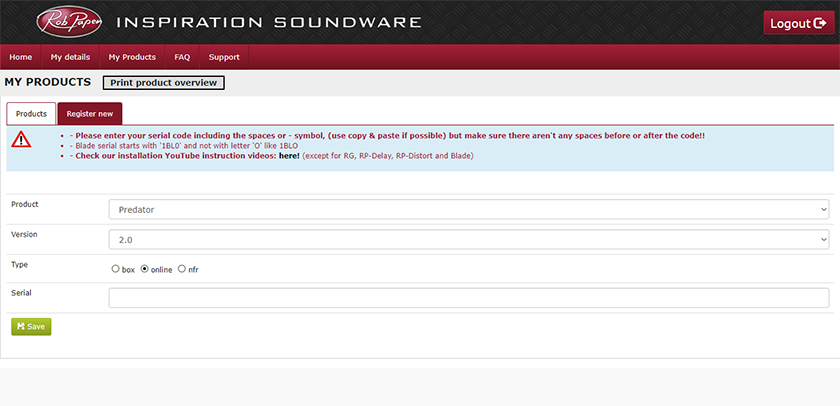
Click the image to register your software.
Download and install the software
Once the product is registered to your Rob Papen account, you can download and install your software. Go to your products page, and select the plug-in you will download. Once the software has been downloaded to your computer, it will need to be installed. Follow these steps to install your product.
- Navigate to the My Products tab, then click Products.
- Download the appropriate installer for your operating system.
- PC users: Download the AAX installer if you are using Pro Tools. Every other DAW will require you only to install the VST. Visit our guide for more information on plug-in compatibility.
- Open your Downloads folder and double-click the .exe file (PC) or .pkg file (Mac) installer file and follow the on-screen instructions.
- Mac users: Be sure to restart your computer after running the installer.
Activate the plug-in
After your plug-in has been registered and installed, the last step is to load it in your DAW and activate it. You will need to open up your internet browser and sign back into your Rob Papen account, so follow the steps below to activate the plug-in.
- Launch your DAW and load the plug-in on a MIDI or instrument track. When the activation window appears, take note of your Computer ID.
- Go to the Products tab on your account page, manually type the Computer ID in the Computer ID field, then click Activate. An activation code will appear.
- Go back to the plug-in window inside your DAW, manually type the Activation code, then click Activate.
When you need help, Sweetwater has the answers!
Our knowledge base contains over 28,000 expertly written tech articles that will give you answers and help you get the most out of your gear. Our pro musicians and gear experts update content daily to keep you informed and on your way. Best of all, it’s totally FREE, and it’s just another reason that you get more at Sweetwater.com.

