
Can I import multiple listings at once?
Yes! Our Bulk Imports tool will allow you to create multiple listing drafts with one upload (max 200 items per import).
Note: Bulk Imports cannot be used to publish, update, or delete listings – only to create drafts.
BULK IMPORTS
In order to import multiple items at once, you must format your listing data into a file with comma-separated values (CSV). Once the CSV upload is complete, you will need to review each draft and make edits as needed before publishing.
Getting Started with Bulk Imports
First, be sure to complete your Gear Exchange seller profile and set up your storefront:
- Complete your profile by entering display name, zip code, and phone number
- Submit a valid credit card to serve as your Seller Card on File
- Set up your storefront with name, address, shop description, and default return policy
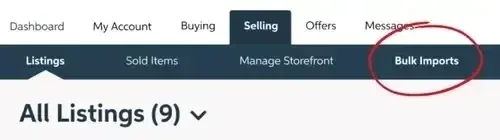
Next, you will see the Bulk Imports option in the Selling tab of your account.
Formatting Your File
You will need to format your CSV file according to the GX template before uploading.
Download our template
Required Fields
The following fields are required in order to process the CSV file and create listing drafts (all other fields in the template are optional for import).
- title
- condition
- brand
- description
- price
- offers_enabled
- delivery_method
- shipping_price
Uploading Your File
When your CSV file is ready, navigate to the Bulk Imports tool where you’ll see the following interface.
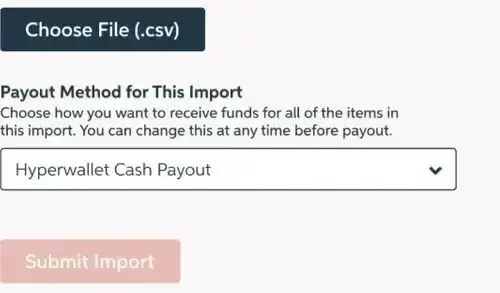
Choose your file and select a payout method from the dropdown field (default payout for imports is Hyperwallet Cash Payout).
The payout method you choose here will apply to all listings in this import. Once your draft listings have been created, you can edit them individually as needed.
Import Processing
Once your import has been submitted, you can navigate away while it processes (this may take a few minutes). As soon as the import is complete, you will receive an email confirmation with a status report. If any listings have failed to import, the email will include an attached CSV file that highlights file errors or field omissions. If needed, make corrections and re-upload the failed listings within a new file.
Publishing Your Drafts
A successful import will create draft listings for each item. You will need to review each draft individually and make edits as needed before publishing.
Need help? Contact the Gear Exchange admin with questions.