
Can I import listings from other marketplaces?
Yes! We make it easy for Gear Exchange sellers to export their existing items from other marketplaces and import them directly to their GX storefront.
You can now create multiple listing drafts with one upload (max 200 items per import). Once the upload is complete, you will need to review each draft and make edits as needed before publishing.
Note: You must complete your Gear Exchange seller profile before submitting an import:
- Complete your profile by entering display name, zip code, and phone number
- Submit a valid credit card to serve as your Seller Card on File
- Set up your storefront with name, address, shop description, and default return policy
Please format your listing data into a file with comma-separated values (CSV) according to one of the options below
IMPORTING FROM REVERB.COM
If you already have a Reverb shop with existing listings, it's easy to transfer your data to Gear Exchange. In fact, you can simply export your Reverb.com listings and import them here.
You do not need to reformat the Reverb CSV file - we are able to process their file format.
STEP 1
Log in to your Reverb.com account. Go to the Selling section from the main menu and click Listings.
STEP 2
Use the left-hand filters to select live listings with any condition besides "Brand New" and click the Export Listings icon on the right. Reverb will send you an email with a CSV file containing all of your listing data.
STEP 3
Review the CSV file to make sure it contains only the listings you want to import to Gear Exchange. (Remember, we limit the import size to 200 listings per file.)
STEP 4
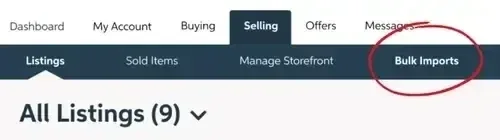
Navigate to the Bulk Imports option in the Selling tab of your Gear Exchange user dashboard and follow the instructions to upload your file.
IMPORTING FROM EBAY
If you have used music gear listed on eBay and you want to use our Bulk Imports tool to quickly add those items to Gear Exchange, you will need to export from eBay and reformat the CSV file to import here.
eBay listings outside of their “Musical Instruments” category are prohibited on GX.
STEP 1
Log in to your ebay.com account. Go to the Seller Hub and click on the Reports tab. Then click the Downloads option.
STEP 2
Click the button that says: Download report. From the popup form, make the following choices:
- Report source: Listings
- Report type: Active
Click the Download button and the file will be downloaded to your machine.
STEP 3
Review the CSV file to make sure it contains only the listings you want to import to Gear Exchange. (Remember, we limit the import size to 200 listings per file.)
STEP 4
The CSV file exported from eBay will need to be reformatted to match the GX file template. Download the GX template for reference and be sure to include all required fields (per instructions below).
Download our template.
IMPORTING TO GEAR EXCHANGE
GX Required Fields
The following fields are required in order to process the CSV file and create listing drafts (all other fields in the template are optional for import).
- title
- condition
- brand
- description
- price
- category
- offers_enabled
- delivery_method
- shipping_price
Import Processing
Once your import has been submitted, you can navigate away while it processes (this may take a few minutes). As soon as the import is complete, you will receive an email confirmation with a status report. If any listings have failed to import, the email will include an attached CSV file that highlights file errors or field omissions. If needed, make corrections and re-upload the failed listings within a new file.
Publishing Your Drafts
A successful import will create draft listings for each item. You will need to review each draft individually and make edits as needed before publishing.